


- First Steps Checklist
-
Frequently Asked Questions
-
All About Features
- How to Install the Tracking Code
-
User Guides
-
Integrating With Other Platforms
-
Legal, Data Privacy & Certificates
- TWAIA Addendum
- White Label Analytics
- Glossary
- Contact
Polls
Understand Your Visitors Through Quick and Actionable Insights
What It's All About
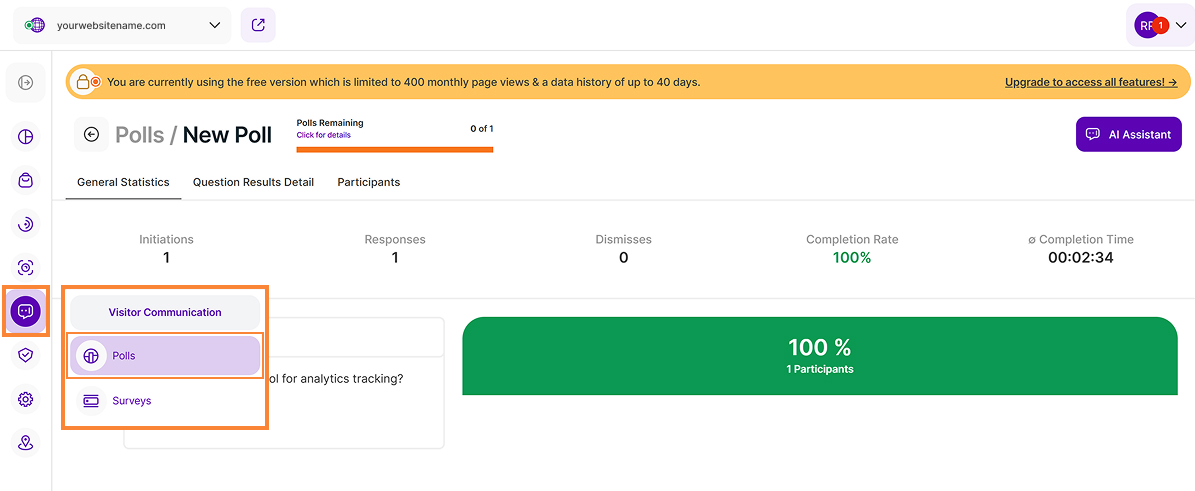
The Visitor Communication module is categorized into two distinct features, the first of which is Polls. Polls are in-page questionnaire bubbles designed to capture quick feedback directly from your website visitors. They are ideal for short question sets, such as "How do you like our service?" or "Is our page easy to navigate?”and are designed for quick evaluation.
This module allows you to create, edit, and manage polls, as well as to get insights into both poll performance and participants.
Important Hint: Poll visibility is directly tied to visit tracking events. Consequently, any visitors who are ignored within your application settings will not be able to see or interact with the poll. Please ensure that your own visits are not being ignored if you wish to see the poll live on your site for testing purposes.
Some General Hints
These tips will help you discover hidden information and get the most out of this module to analyze your dashboard data:
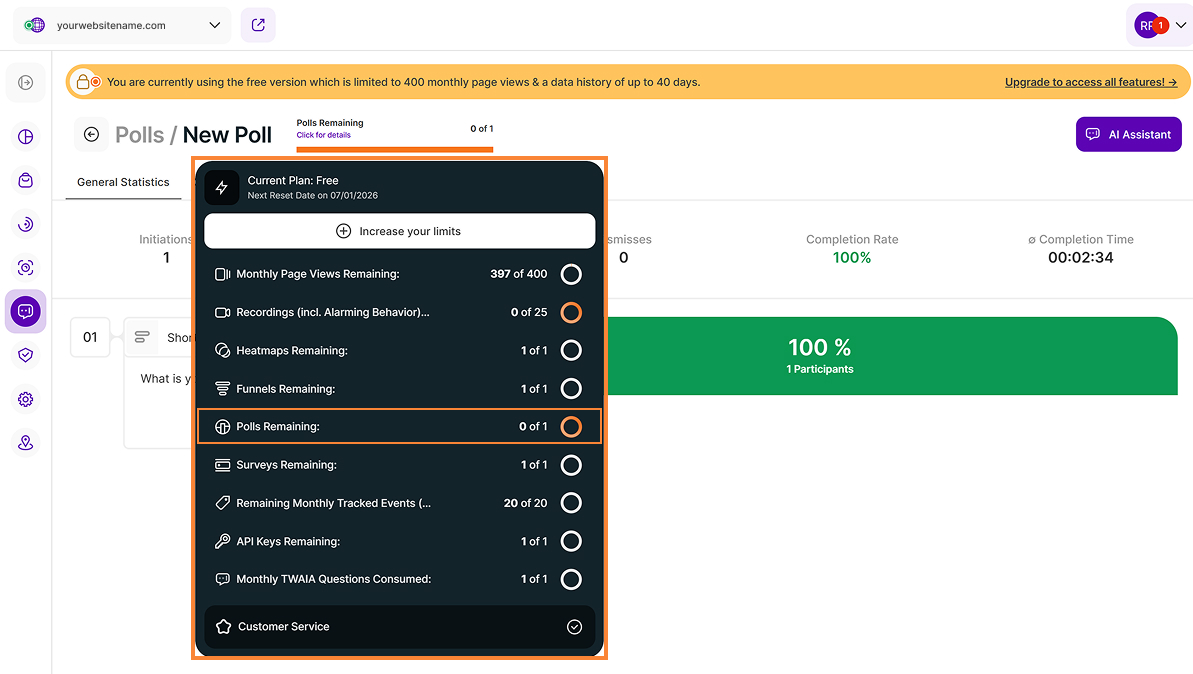
- Plan Limits: Click on the feature counter (Click for details) to display a tooltip showing your current plan's limits. Click the Increase your limits button within the limits tooltip to access the Upgrade Plan option.
- AI Assistant Button: Our new assistant, TWAIA, is located in the top right corner of all modules. This gives you easy, one-click access to assistance whenever you need it.
- Tooltips: You can access the tooltips containing full column titles, descriptions, helpful hints, and glossary links by clicking on Page headers, Report Block (RB) titles, and Section headers. These titles are displayed for all languages. For tabs, the tooltip is available only if the tab is currently active. Hint: Look for a dashed underline on clickable elements to identify those with tooltips.
- Hover Functionality: Simply move your mouse over certain elements to instantly view more information.
- Poll Interaction: The poll bubble appears in the lower right corner of your website for both mobile and desktop users. Visitors can click the bubble to minimize the poll and tap it again at any time to maximize it when they are ready to answer questions.
- Display Order: Polls and surveys are displayed on your live site in the order they were originally created. This sequence remains consistent even if items were initially saved as drafts, paused, or rearranged in your internal list.
How to Activate Polls
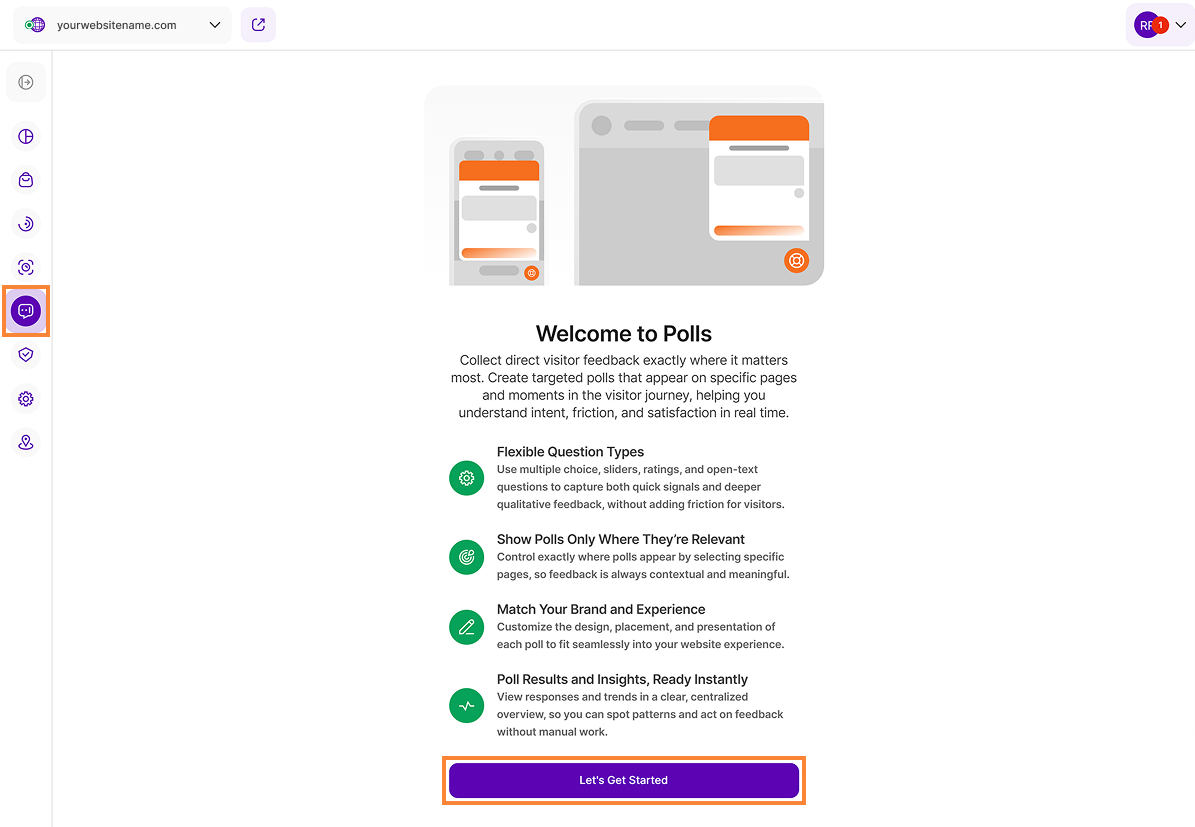
To activate the Polls feature, please follow these steps:
- On the Main Menu, locate and click on Visitor Communication, then select Polls.
- On the Welcome screen, click the Let's Get Started button to initiate the setup process.
- Configure your specific questions, choose your design theme, and set your Rule based targeting options.
- Click Publish button in the top right corner to begin gathering insights immediately.
Once your polls are configured and published, data collection starts in real time. You can then monitor both the overall performance of the poll and the detailed responses from your participants.
Creating a Poll
To create a poll that is both engaging and targeted to the right audience, the setup process is divided into four main sections. Start by clicking Create New Poll, then complete the following steps:
Question Creation
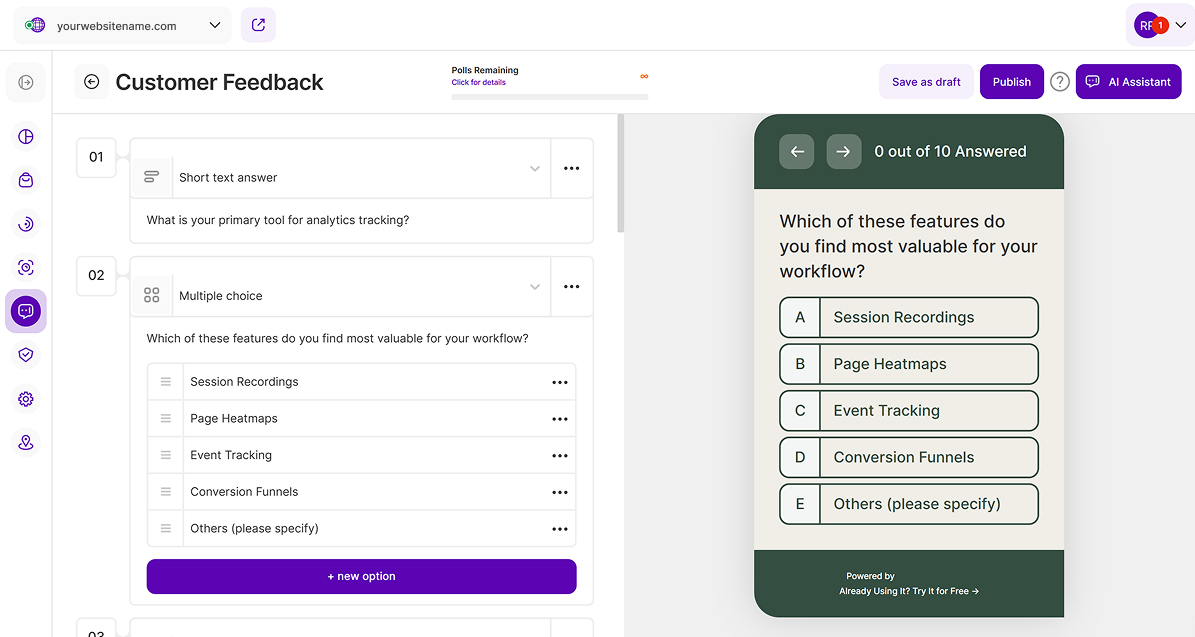
To ensure that poll creation is as straightforward as possible, we provide several pre-defined question types. Each question can also include an optional description. Familiarizing yourself with these options will allow you to select the best format for your specific goals. Each poll supports a maximum of 65 questions to help you collect precise and actionable data.
Below are the question types you can use in polls:
- Short Text Answer: Best for brief responses. This type includes a text question and an optional description with a character limit of 280 characters.
- Long Text Answer: Ideal for detailed feedback. This option allows for more extensive text replies with a limit of 4,000 characters.
- Multiple Choice: Define a specific set of choices for your participants. Each option can be named individually, and you can include a description for additional context. The Allow multiple markings option is also available, allowing participants to select more than one choice per question.
- Slider: Participants provide feedback by moving a slider across a scale. You can customize the labels that appear on the slider to guide the participant's response.
- Shape Rating: This type allows you to use pre-defined shapes instead of numbers for your rating scale, such as stars, hearts, or thumbs up. You can define both the number of steps and their labels.
- Numerical Rating: Define a numerical scale with custom labels and set the number of steps as needed.
- Email: Designed specifically for collecting email addresses from participants.
- Phone Number: Allows you to collect participants’ phone numbers, including country codes, to ensure accurate contact information.
- Website address: Enables you to collect the participant’s website address for accurate reference.
Date: Best suited for questions that require a specific calendar date, such as scheduling an event.
Important Notes:
- Additional options and settings can be found next to the question type dropdown menu. Click the three-dot icon (...) to display additional configuration options, including the ability to duplicate or delete the question.
- Participants must answer each question before they can proceed to the next one.
Rule Based Targeting
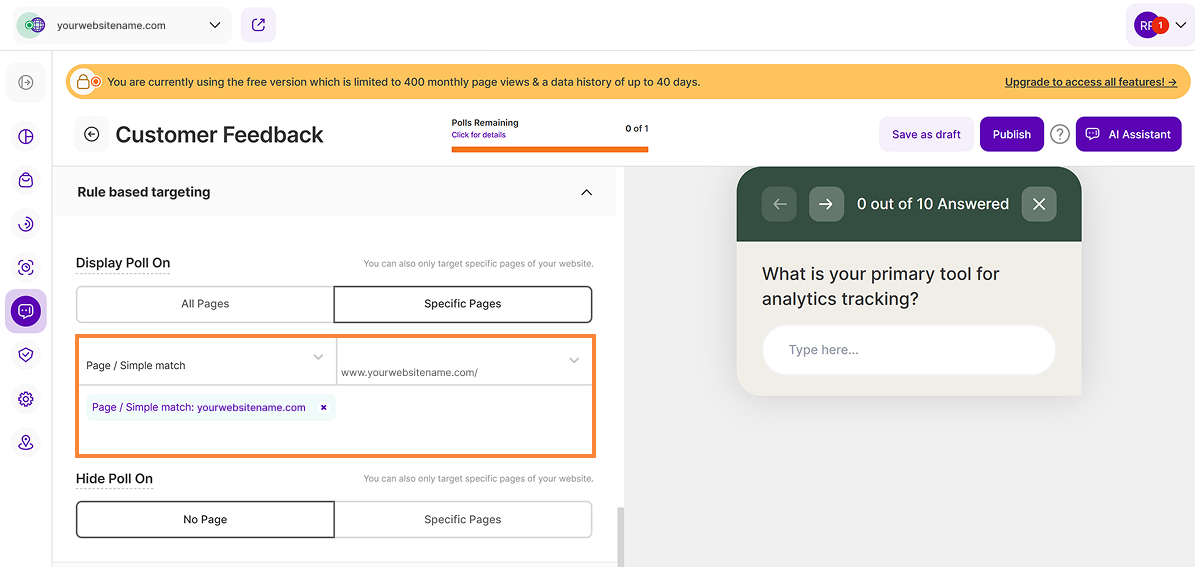
Once you have added your questions, you can customize it using Rule based targeting. The application categorizes these options as follows:
Display Poll On: Specify whether you want to display the poll on all pages or only on specific pages. When Specific Pages is selected, choose one of the URL patterns below based on your preference. The default option is Page / Simple match.
URL Pattern Option A Poll Is Displayed When it Matches … Page / Simple match … a single, specific page path you entered, ignoring common variables like the protocol (http/https), the www. subdomain, and any query strings (?param=x) or fragments (#section). Exact match … the URL exactly as you enter it, including the protocol, query strings, and fragments. This is the most restrictive option. Starts With … any URL that begins with the text value you input. Contains … any URL that includes the text value you enter anywhere within the address. Ends with … any URL that finishes with the text value you input. - Hide Poll On: Select No Page so you can display the poll on all pages of your website or select Specific Pages to only target the specific pages of your website. Please refer to the table below to select the right URL pattern option.
Appearance
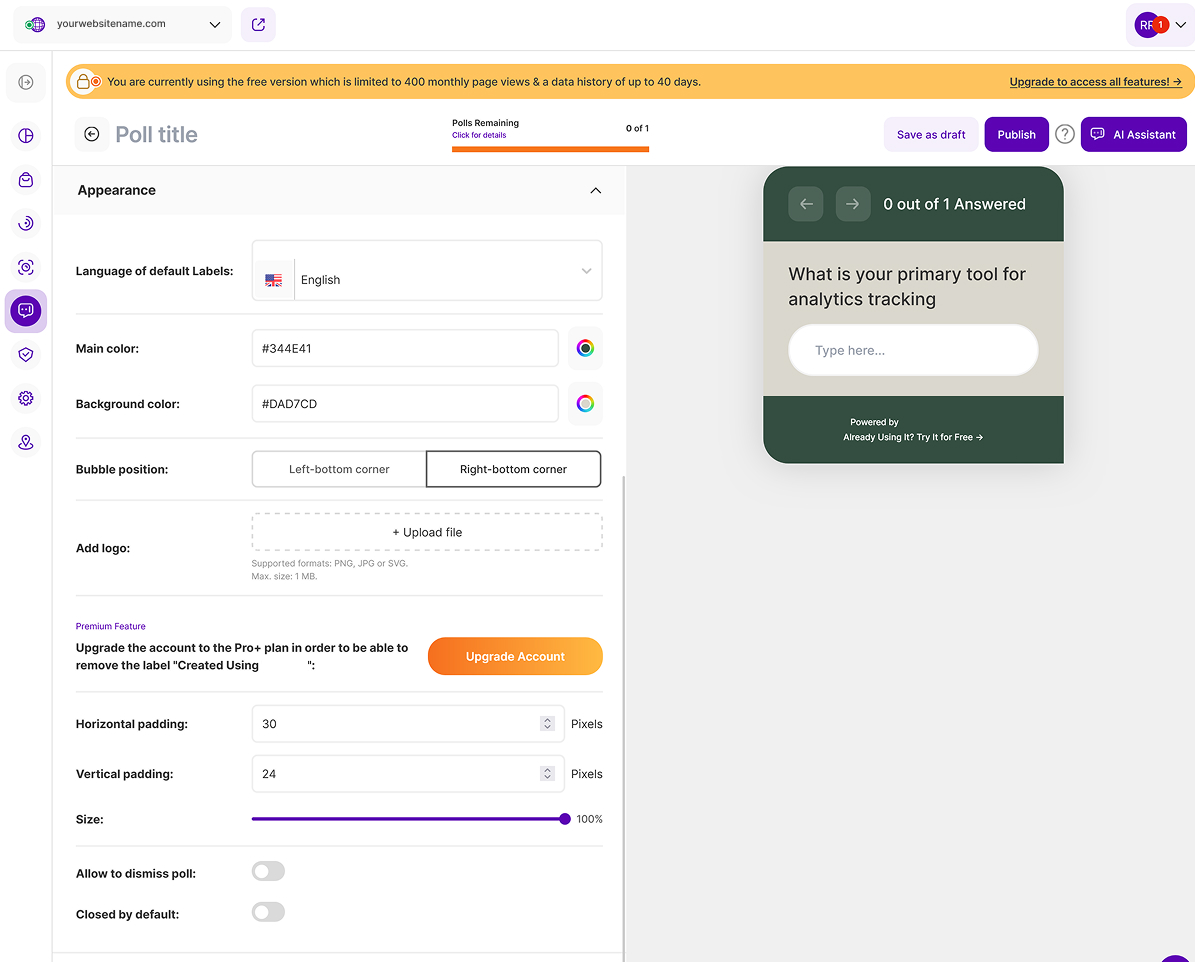
Our platform offers a variety of personalization options to ensure that your polls align perfectly with your website and your brand identity. You can customize various elements to create a seamless and engaging experience for your audience.
Here is how to customize the appearance of your polls:
- Language of default Labels: You can customize the language of your poll by selecting one of the predefined languages such as English, German, Spanish, Portuguese, Italian, French, and Romanian.
- Main color: Choose the main color of your poll to match your website and brand identity. You can manually enter a hex color code or choose a shade using the color picker.
- Background color: Select a background color that complements your main color. You can enter a hex code or utilize the color picker to find the preferred shade for your theme.
- Bubble position: Select whether you want the bubble to be displayed at the left-bottom corner or at the right-bottom corner of your website.
- Add logo: To enhance your branding, you can upload a custom logo to be displayed in the bubble's top section. Please note the supported formats and sizes, PNG, JPG, SVG, with a maximum size of 1 MB.
- Padding: Adjust the bubble's position by specifying horizontal or vertical padding in pixels.
- Size: Configure the poll window size via a slider that offers multiple options, with a minimum setting of 60%.
- Allow to dismiss poll: Enable this toggle to provide visitors with the option to dismiss the poll manually.
- Closed by default: Enable this option to display the poll in a closed state. The poll will only open following user interaction, such as clicking the poll bubble.
Important Note: If you are subscribed to the required minimum pricing plan, you will have the premium feature to disable the “Created Using...” footer.
Publish
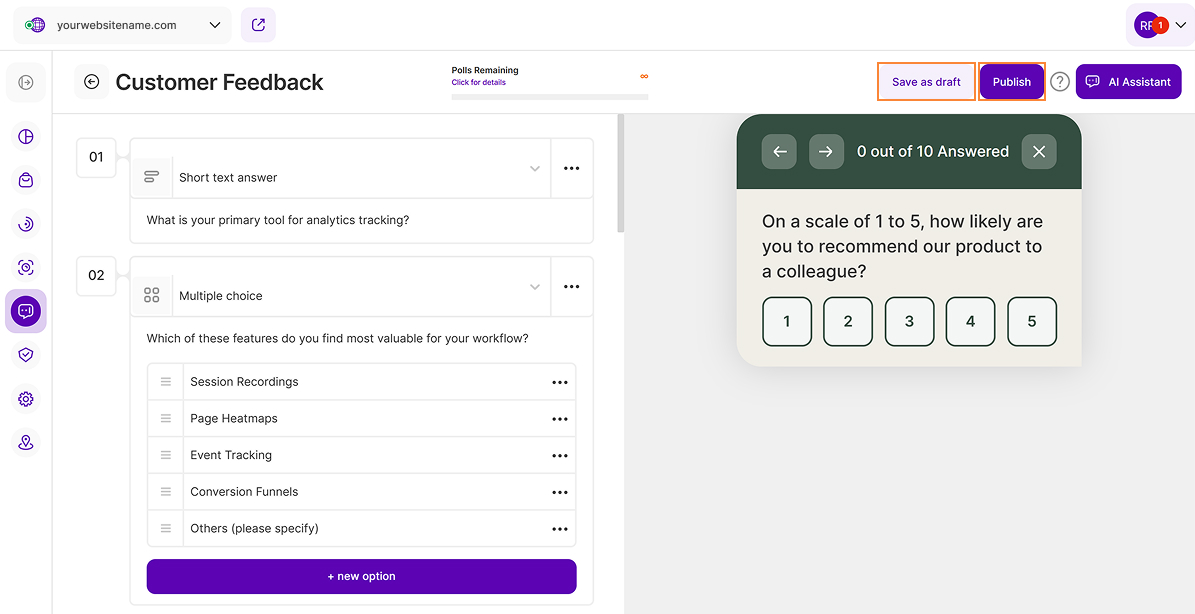
Once you have finished creating your poll questions, configured the settings, and customized the appearance, you are ready to make your poll available to participants. To do so, click Publish in the upper-right corner of the page.
If you are not ready to publish your poll, click Save as Draft instead. This saves your progress so you can return later to continue editing or complete the survey setup before publishing.
Important Note: Once a poll has been published, its questions and poll preferences can no longer be edited. Be sure to review your poll carefully before publishing.
Main Table of Polls
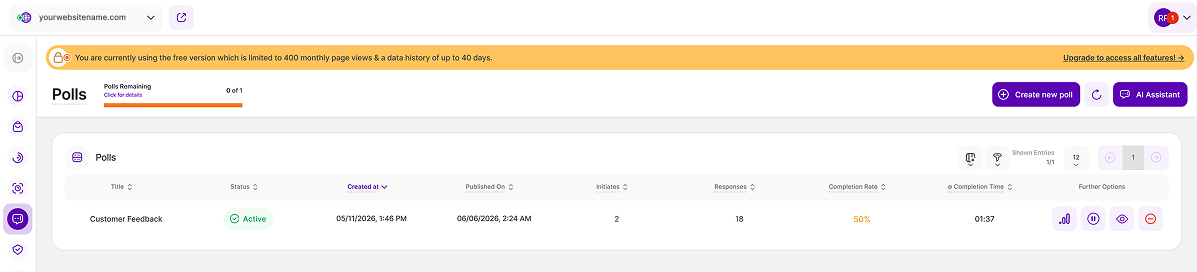
Once a poll is created, it is automatically added to the main table, which displays all polls regardless of their current status. The table includes the following columns:
- Title: This shows the custom title you have set for the poll.
- Status: Indicates whether a poll is Active, Inactive, Paused, or saved as a Draft.
- Created at: The date the poll was created, regardless of its current status (Draft or Published). Note: This is the creation date, not the date when the poll was published.
- Published On: Displays the date each poll was published.
- Initiates: This column displays the total number of participants for each poll, including both "initiators" and those who have "fully completed the poll." Initiators are users who started the poll by answering at least one question but did not complete all questions. They are not counted as fully completed participants.
- Responses: The total answers given by all participants across all questions. Note: A single participant may answer multiple questions, so the number of responses may exceed the number of participants.
- Completion Rate: This column shows a poll's overall completion rate of its participants. It is calculated as: (Number of participants that fully completed poll) / (Total number of poll initiators). Note: The completion rate cannot be determined until at least one participant has completed the entire poll. You can also view each participant’s individual completion rate in the participants table.
- ∅ Completion Time: This column shows the average completion time for a poll's participants. Note: The time cannot be determined until at least one participant has fully completed the poll. Furthermore, polls containing only one question do not have a completion time. The poll needs to containt at least 2 questions overall, so that the completion time can be calculated.
Further Options: Additional options you can choose from for each poll:
- View stats for this poll: Displays detailed information about the polll, including participation data and results.
- Pause Poll: Allows you to pause an active poll or reactivate a paused poll at any time.
- View Poll: Allows you to view the poll and its settings. Poll questions and preferences can only be edited while the poll remains unpublished.
- Delete poll: Permanently removes a poll that is no longer needed. Note: This action cannot be reversed.
Poll Statistics and Analysis
After clicking View Stats for This Poll from the main poll table, you can access the detail view with three tabs that provide detailed insights into the poll's results and participant engagement:
General Statistics
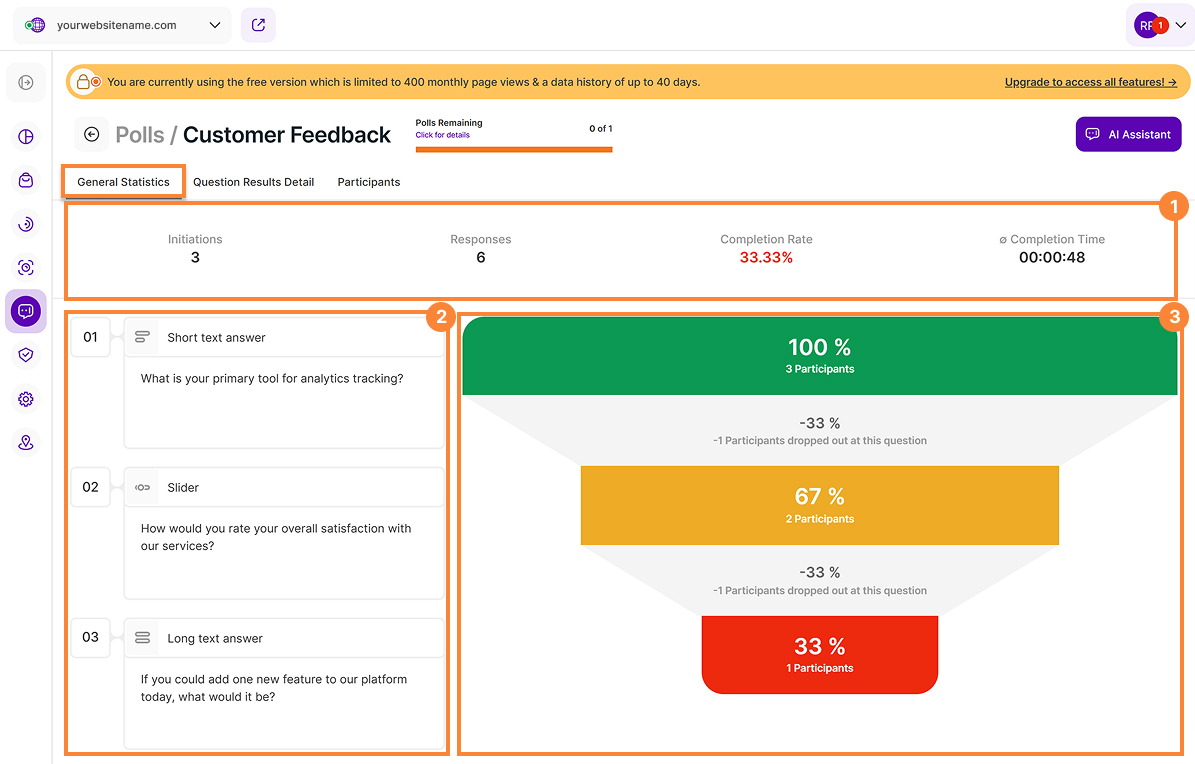
The General Statistics tab will give you a detailed view of poll's performance. It is divided into three main sections that work together to give you a comprehensive understanding of participant engagement and poll effectiveness.
The top section (1) displays a summary of the poll's Key Performance Indicators (KPIs), providing a quick overview of its overall performance:
- Initiations: Displays the total number of participants who engaged with the poll. This metric includes both initiators and completed participants. Initiators are participants who started the poll by answering at least one question but did not complete all questions. Completed participants are those who answered all questions and successfully finished the poll.
- Responses: Shows the total number of responses submitted across all questions by all participants.
- Dismisses: Shows the number of participants who exited the poll without proceeding to the next question.
- Completion Rate: Shows the percentage of participants who completed the poll. This metric can only be calculated once at least one participant has successfully completed the poll.
- ∅ Completion Time: Displays the average time taken to complete the poll. This metric can only be calculated after at least one participant has completed the poll.
Note: Completion time cannot be calculated for single-question polls. The poll must contain at least two questions for this metric to be available.
Directly below the Key Performance Indicators (KPIs), the page is divided into two sections. On the left, the Question Details (2) section displays information for each poll question, including the question number, question type, and the full question text. This information provides the context needed to identify the question being analyzed and interpret its corresponding performance metrics.
On the right is a funnel (3) section. It provides a visual representation of participant progression for each poll question. It displays the percentage and number of participants who completed the question, as well as those who dropped out at that point in the poll. This makes it easy to evaluate participant engagement, identify where respondents exited the poll, and pinpoint questions that may require improvement to increase completion rates.
The funnel analysis uses color-coded indicators to represent the completion rate for each question. Green indicates a high completion rate, yellow indicates a moderate completion rate, and red indicates a low completion rate. These visual indicators make it easy to identify questions where participants are more likely to abandon the poll, helping you optimize your poll to improve engagement and increase completion rates.ion rates.
Question Results Detail
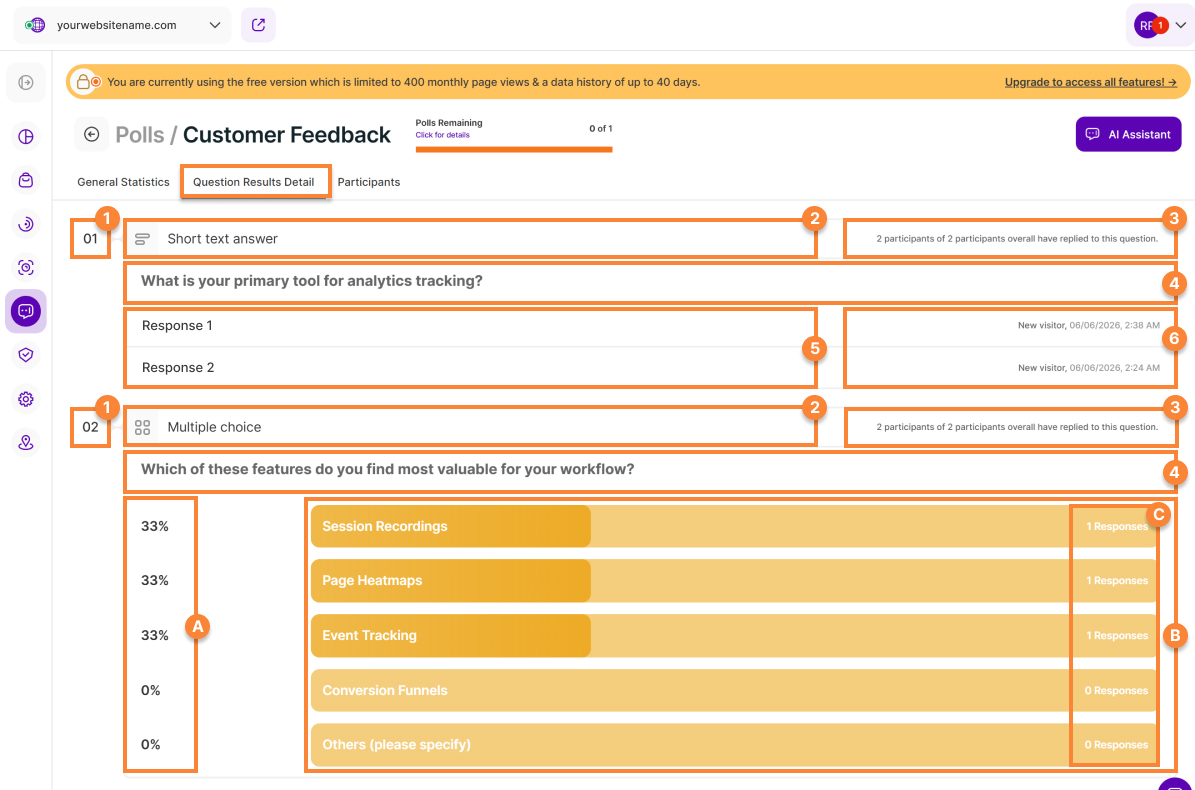
The Question Results Detail tab provides a comprehensive breakdown of responses for each question, enabling you to analyze participant feedback in greater detail. By reviewing these results, you can identify trends, understand participant preferences, and make data-driven decisions based on the collected responses.
The following details are displayed in this section:
- Question Number: Each question is assigned a unique number, allowing you to easily identify its position within the poll.
- Question Type: Displays the type of question (e.g., Short Text Answer, Multiple Choice, or Long Text Answer) next to the question number.
- Participant Count: Shows the number of participants who answered the question, along with the total number of participants who took part in the poll.
- Question: Displays the full text of the question.
- Answers: Displays the responses submitted for the poll question. For Multiple choice questions, it shows the available answer options.
- Visitor Type and Completion Date: Shows the visitor type (New, Returning or Converting) along with the date and time when the participant has completed or submitted the poll.
For Multiple choice, Slider, Shape rating, and Numerical rating questions, the following response statistics are displayed to help you compare answer distributions:
A. Percentage: Shows the percentage that each answer option represents out of all responses received for that question.
B. Answer Options: The answers are sorted in descending order by number of responses received.
C. Response Count: For Multiple choice questions, displays the total number of responses received for each answer option.
Important Note: Response results for questions with multiple answer options are displayed using horizontal bars, which provide a visual representation of each answer option's share of the total responses. Longer bars indicate that an option was selected more frequently, making it easier to identify trends and compare results at a glance.
Participants
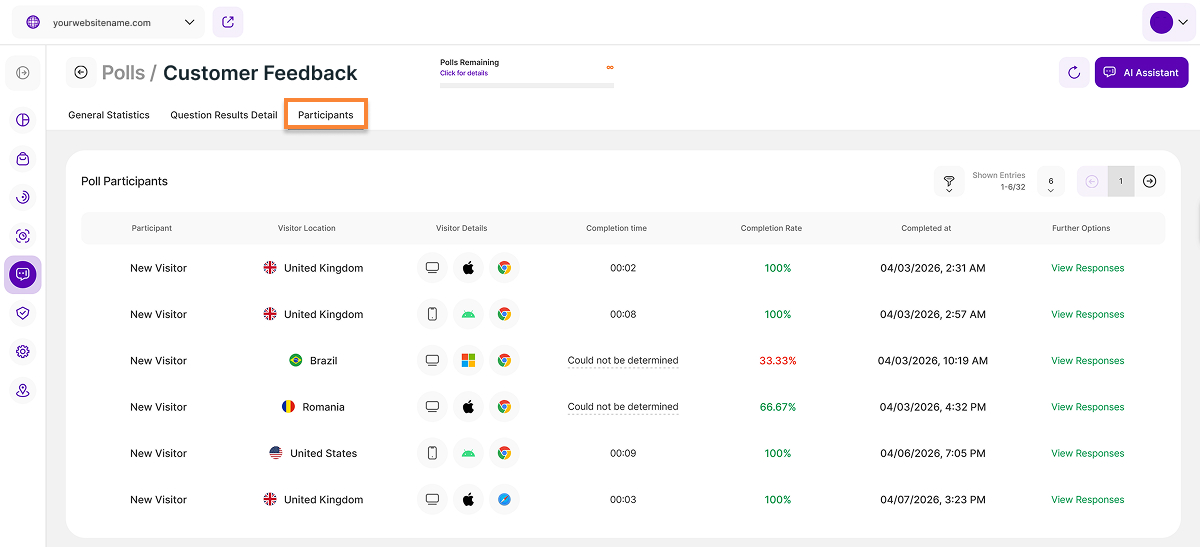
The Participants tab provides detailed information about the participants who have either initiated or completed the poll. This view helps you better understand who participated, how they interacted with the poll, and their level of engagement.
This table includes the following columns:
Participant: The participants are categorized as follows:
- New Visitor: This visitor has not visited your website before.
- Returning Visitor: This visitor has visited your website before.
- Conversion Visitor: This visitor has visited a page you defined as a conversion event during his visit. Could be both a new or returning visitor.
- Visitor Location: Shows you which country a participant originates from.
- Visitor Details: This shows more information about the participant - device used, Operating System, and browser.
- Completion time: This shows the amount of time it took the participant to complete the poll – only participants that fully submitted a poll will have this information displayed. Note: If partially answered, the completion time cannot be determined and would only display "Could not be determined".
- Completion rate: Shows the percentage of completion which is computed from the number of questions answered compared to the total number of questions.
- Completed at: Displays the date and time when the participant has completed or submitted the poll.
- Further Options: Select View Responses to view the complete set of responses submitted by the selected participant.
Detail View of Responses
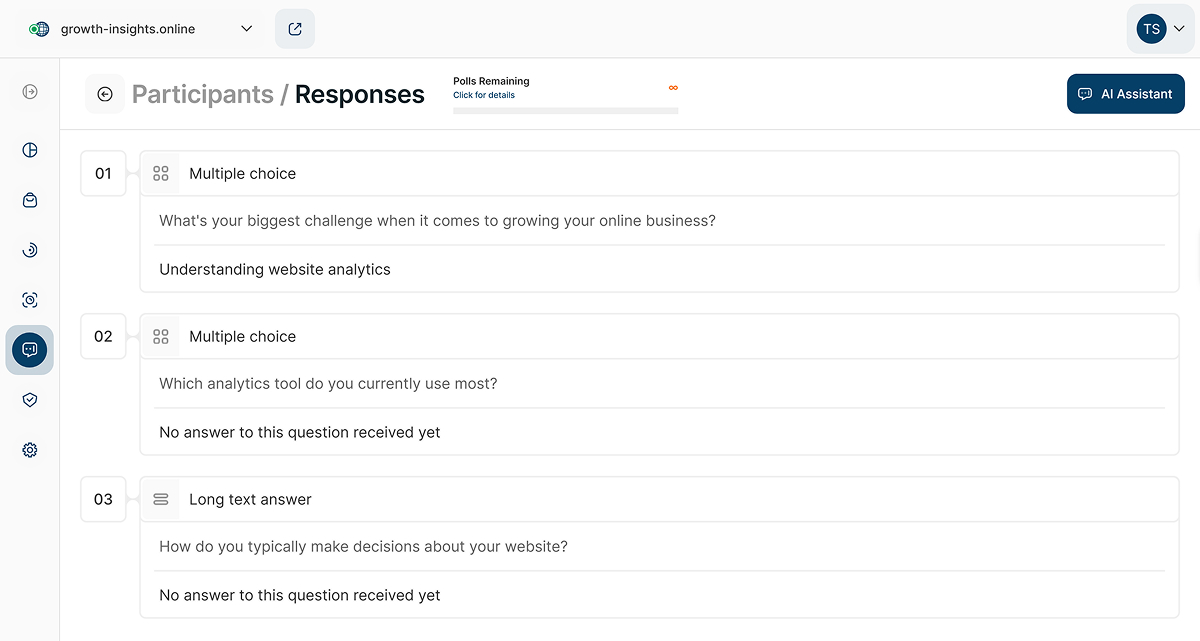
After clicking View Responses from the Participants view, you can access the complete set of responses submitted by the selected participant. This view displays all of the participant's answers in a single, organized page for easy review.
Filters for Participants
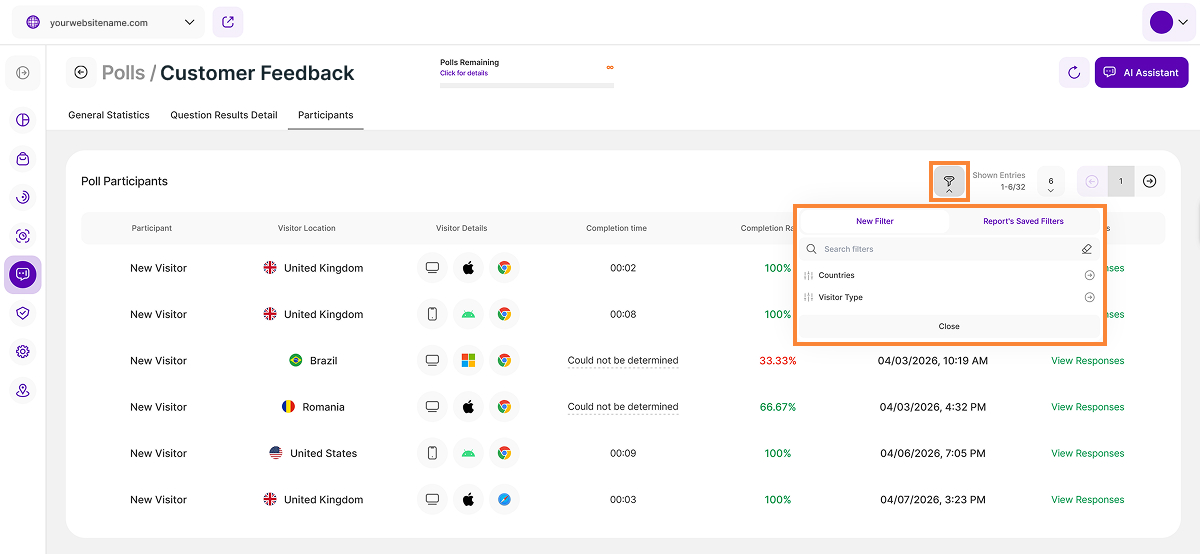
To quickly find specific information about your poll participants, click the Filter icon in the upper-right corner of this report block. You can filter the participant data by:
- Countries
- Visitor Type
After applying your filters, you can save them for future use or apply a previously saved filter template for quicker access and a more streamlined workflow.
