

This First Steps Checklist guides you through the tasks required to activate your analytics toolkit and begin working with real data.
The checklist moves from activating visitor tracking and setting up access for contributors to defining event tags, custom conversions, and behavior analytics tools.
Each section shows what to do, where to do it, and why it matters, with links to Support Center pages where additional detail may be needed.
TL;DR
- This checklist covers everything needed to set up the platform for reliable analysis.
- Data collection only starts once the tracking code is installed (depending on the platform you use, it’s auto-injected).
- You may have already completed some items during onboarding.
- After that, you can work through the remaining items at your own pace.
- You don’t need to complete everything in one session, and you can return to this checklist at any time.
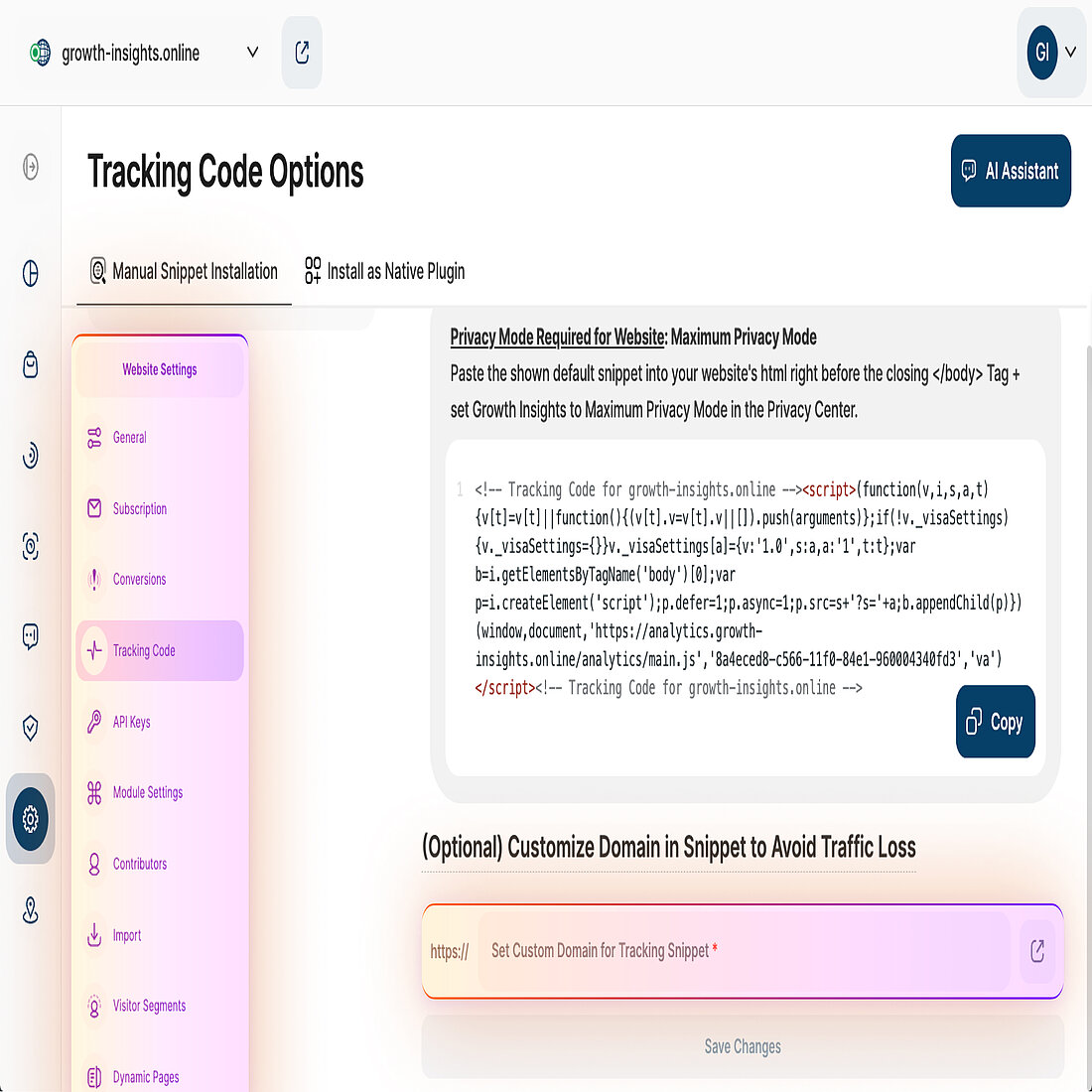
Customize and Install the Tracking Code
The tracking code connects your website to our analytics integration and enables visitor data to flow into the feature suite. Completing these steps ensures tracking is configured correctly from the start, so visits and interactions are recorded consistently across the platform.
Note
- Manual tracking code installation is only required for Weebly and standard integrations. On platforms such as Wix, tracking is embedded and the snippet cannot be modified.
- The tracking code you inject depends on the active privacy mode. To avoid an additional tracking code replacement later, complete the Privacy Center tasks at the same time as this section.
- The steps below must be completed separately for each website added to your account.
- After installing the tracking code, use the tracking status indicator in Website Settings → Tracking Code to confirm that data is being received.
| What to do | Why this matters | Where to do this | Further guidance | |
| 1. | Choose how tracking should work on your site:
| Determines whether visitor data is collected with or without consent and defines the legal basis for tracking. | Website Settings → Tracking Code | |
| 2. | If you choose tracking option 2, select a data privacy mode for data collection. | Controls how data is collected, anonymized, or restricted when consent-based tracking is used. | Privacy Center → Manage Data Privacy Modes |
|
| 3. | Add a custom first-party domain to the tracking code. | Minimizes data loss caused by ad blockers and browser privacy features. | Website Settings → Tracking Code | |
| 4. | Paste the generated custom tracking code into your website HTML. | Activates analytics tracking so visits and interactions can be recorded. | Website source code |
Additional Information
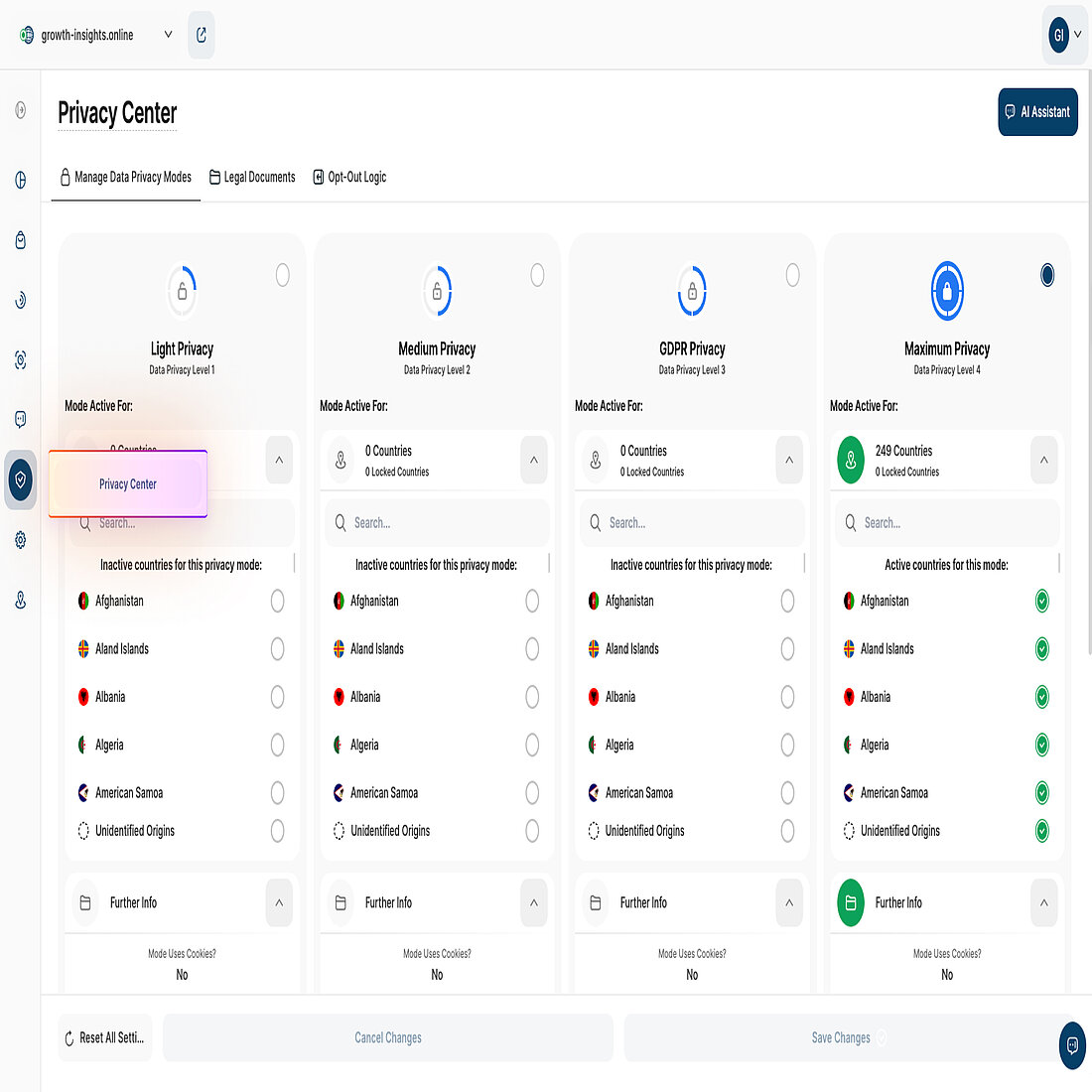
Configure Privacy Center Settings
The Privacy Center defines how visitor data is collected, processed, and restricted across your site. These settings are typically selected during onboarding, but reviewing them here ensures your tracking behavior still aligns with your legal obligations and internal privacy requirements before you begin validating compliance in the checklist below.
| What to do | Why this matters | Where to do this | Further guidance | |
| 1. | Visit the Privacy Center and confirm your active data privacy mode. | Provides visibility into how visitor data is collected and processed, and confirms tracking behavior still aligns with your legal and business requirements. | Privacy Center → Manage Data Privacy Modes | |
| 2. | Optional: Configure custom country privacy modes to apply different data privacy modes based on a visitor’s country of origin. | Enables region-specific data handling, helping you align tracking behavior with local legal requirements and internal privacy standards across different markets. | Privacy Center → Manage Data Privacy Modes Note: Available on Advanced, Pro, and Custom Enterprise plans. |
Additional Information
Review Your Account Info and Setup Basics
Account and setup basics define how the platform behaves from the start, including access control, guidance, and feature availability. These settings may already have been addressed during onboarding, but reviewing them here ensures everything is set correctly before deeper analysis or inviting additional team members.
Account Settings
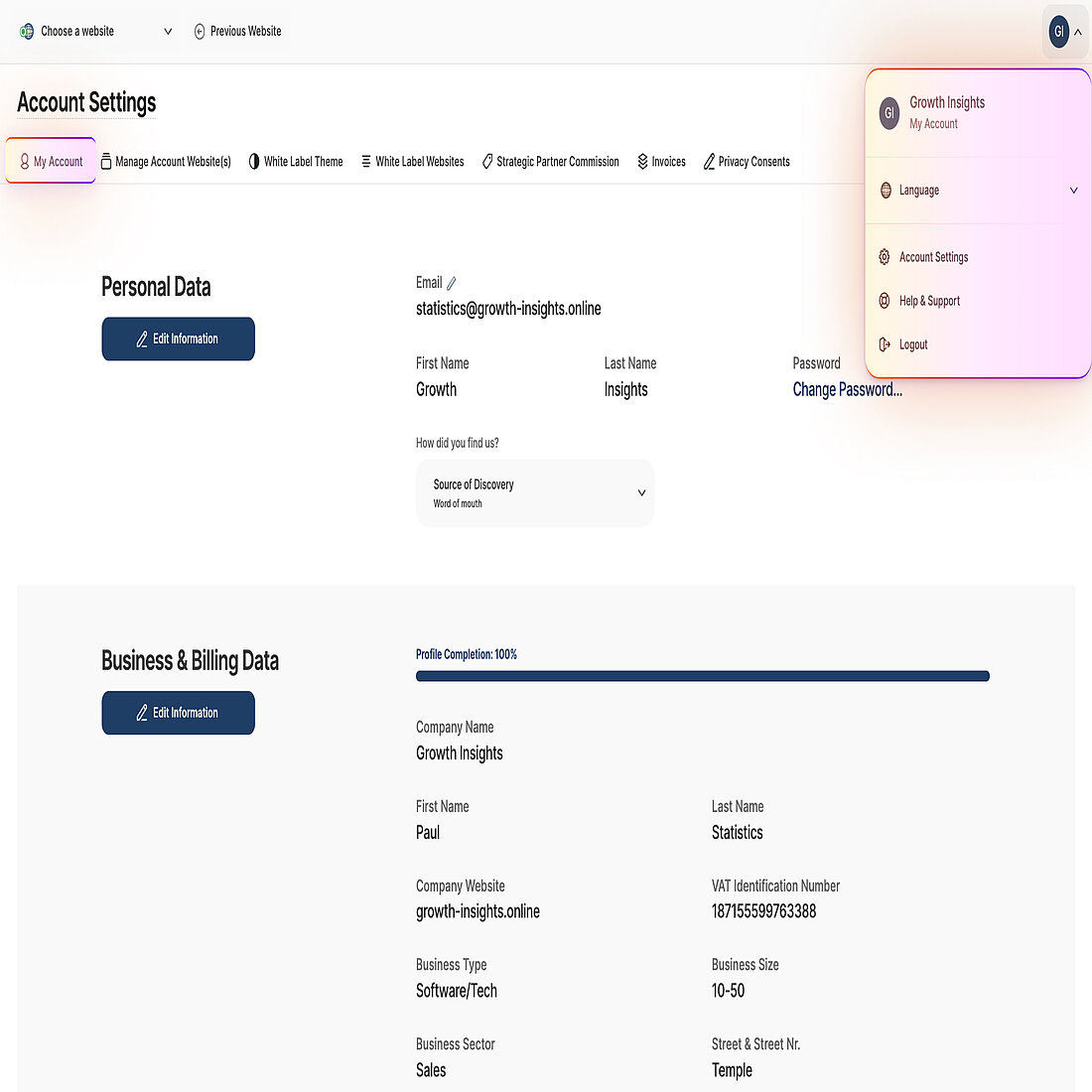
| What to do | Why this matters | Where to do this | Further guidance | |
| 1. | Populate your account profile. | Ensures account identity, billing data, notifications, and default preferences are configured correctly before inviting collaborators or upgrading websites. | Account menu (top right) → Account Settings → My Account | |
| 2. | Optional: Configure a white-label theme. | Customizes branding when sharing access, reports, or dashboards with clients or external stakeholders. | Account menu (top right) → Account Settings → My Account Note: White Labeling is not available on Wix for the time being |
Additional Information
Other Setup Basics
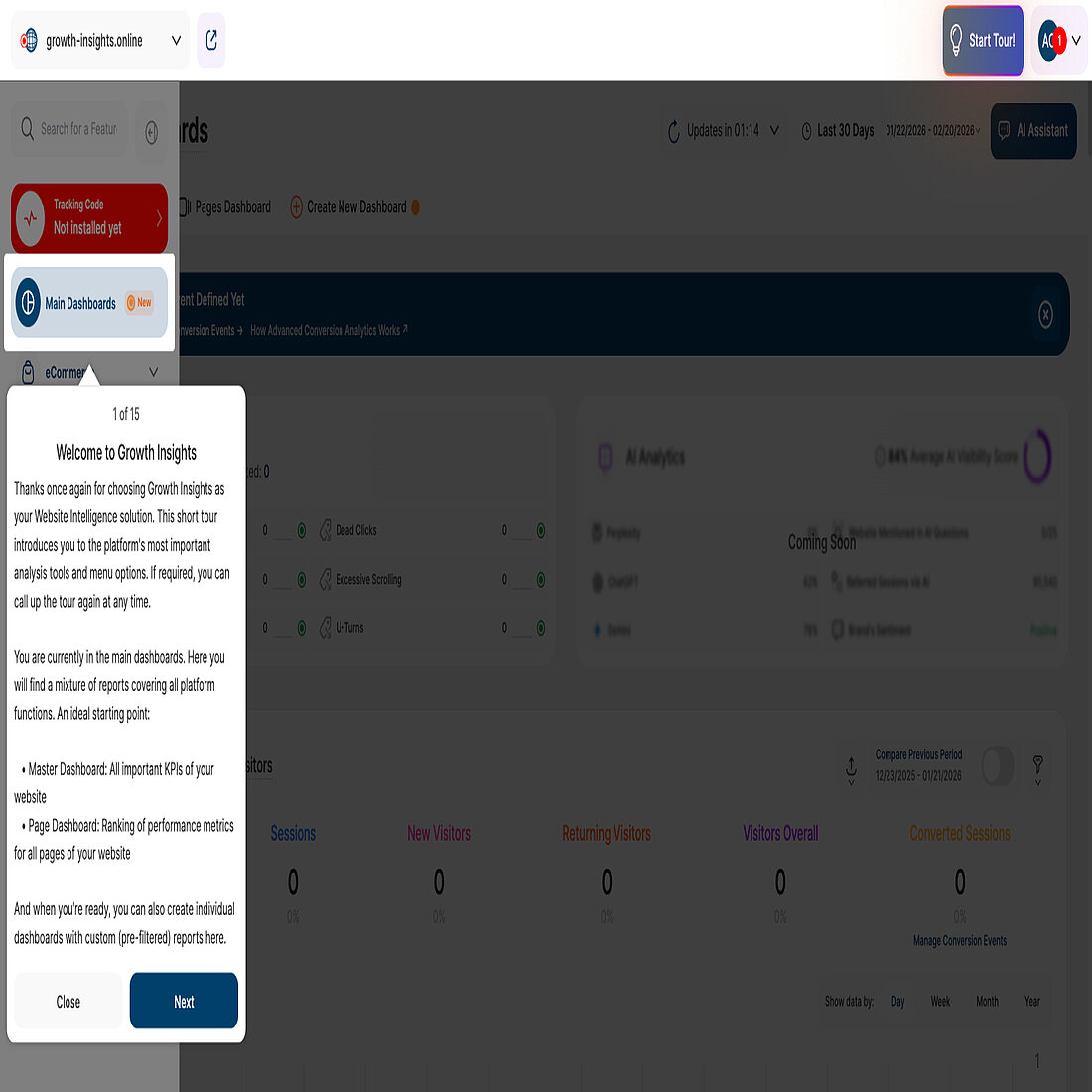
| What to do | Why this matters | Where to do this | Further guidance | |
| 1. | Complete the feature tour. | Provides an overview of available tools and how they connect, helping you understand what to configure next and in which order. | Top-right header → Start Tour! | |
| 2. | Try the TWAIA AI assistant. | Helps you understand what to explore next, explains metrics and reports in context, and supports you as you begin working with live data. | Top-right header → TWAIA Assistant | |
| 3. | Review your website pricing plan and upgrade if needed. | Confirms required features and usage limits are available before enabling advanced analytics, collaboration, or reporting features. | Website Settings → Subscription |
Additional Information
Add Collaborators and Manage Access
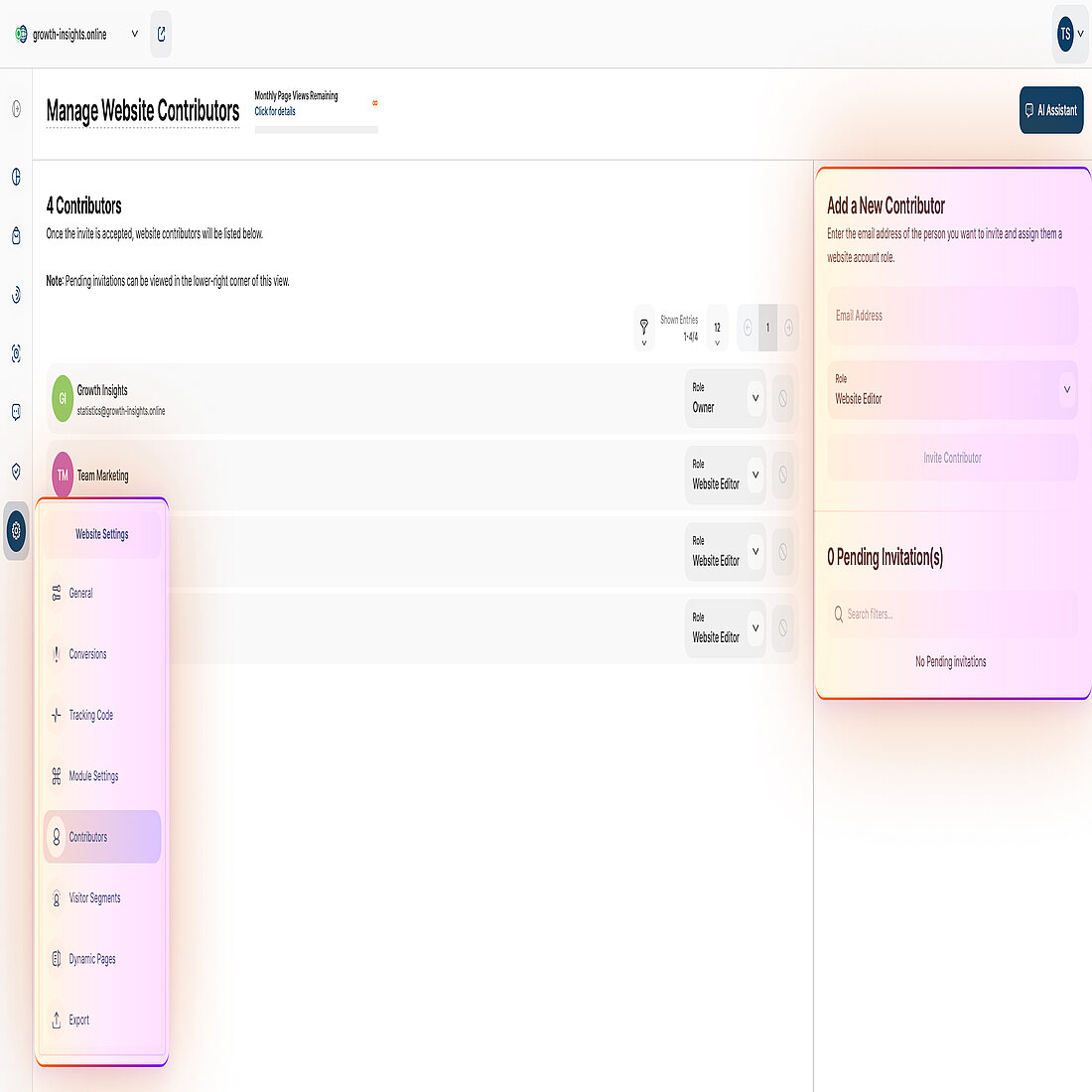
Adding collaborators allows access to be shared with team members while controlling permissions for viewing and management. This ensures the right people have access from the start, without confusion or permission issues.
| What to do | Why this matters | Where to do this | Further guidance | |
| 1. | Add a collaborator and assign an appropriate role. | Ensures team members have the correct level of access for their responsibilities, reducing the risk of accidental changes or unnecessary data exposure. | Website Settings → Contributors |
Note
- Once the invitation is accepted, the collaborator appears in the Contributors list with an assigned role, and the invitation is removed from Pending Invitations.
- Pro and Custom Enterprise plans also support the Custom Dashboard Viewer role for Contributors, which restricts access to specific custom dashboards.
Start Using Core Analytics Features
Core analytics features transform raw tracking into meaningful insights by revealing how visitors interact, progress through journeys, and complete key actions across your site. Activating these features enables deep analysis of behavior, conversions, and performance.
Main Dashboards
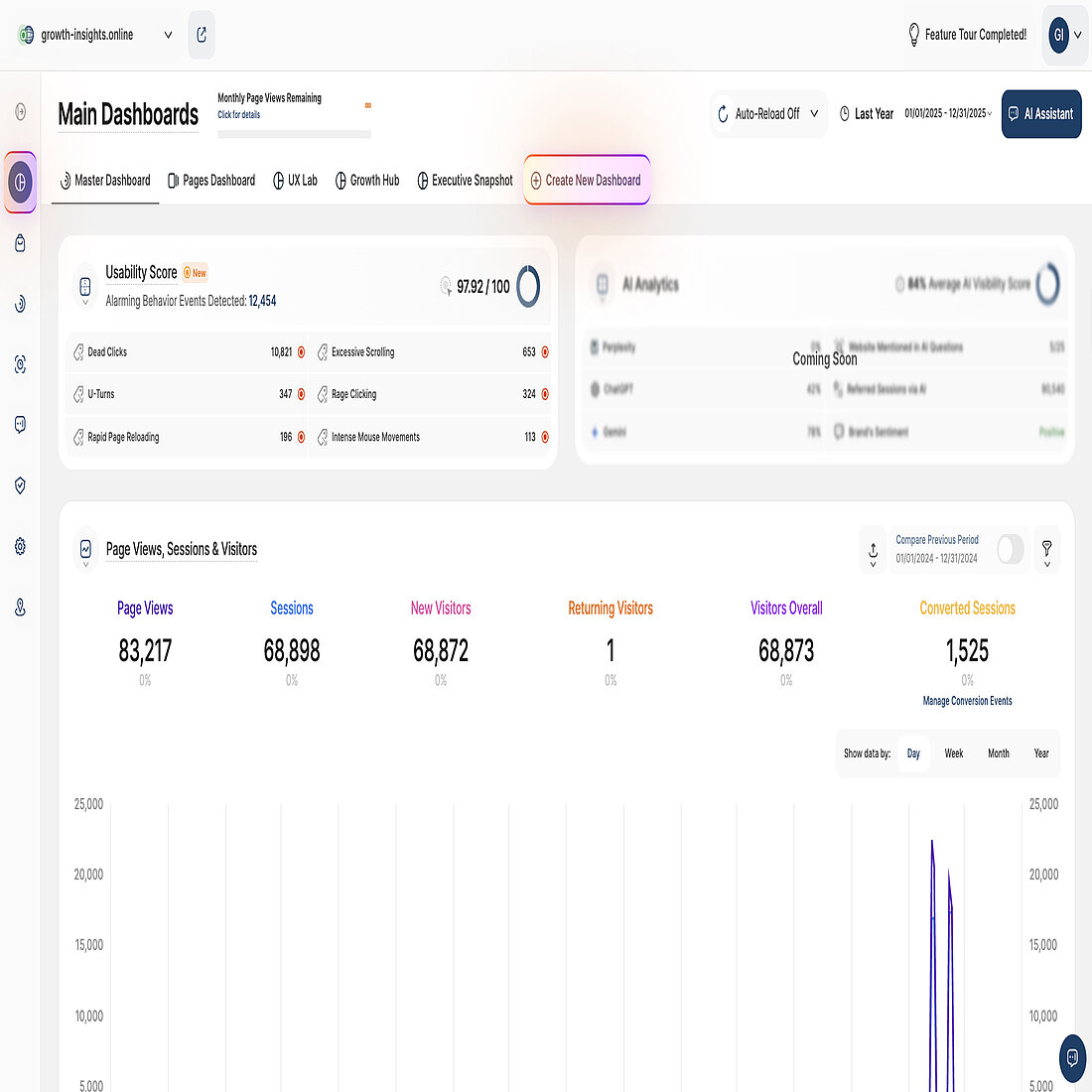
| What to do | Why this matters | Where to do this | Further guidance | |
| 1. | Create a Custom Dashboard. | Brings selected reports together from across the platform into a single, focused view. | Main Dashboards → Create New Dashboard Note: Custom Dashboards are only available for Pro and Custom Enterprise websites |
Custom Conversion Events
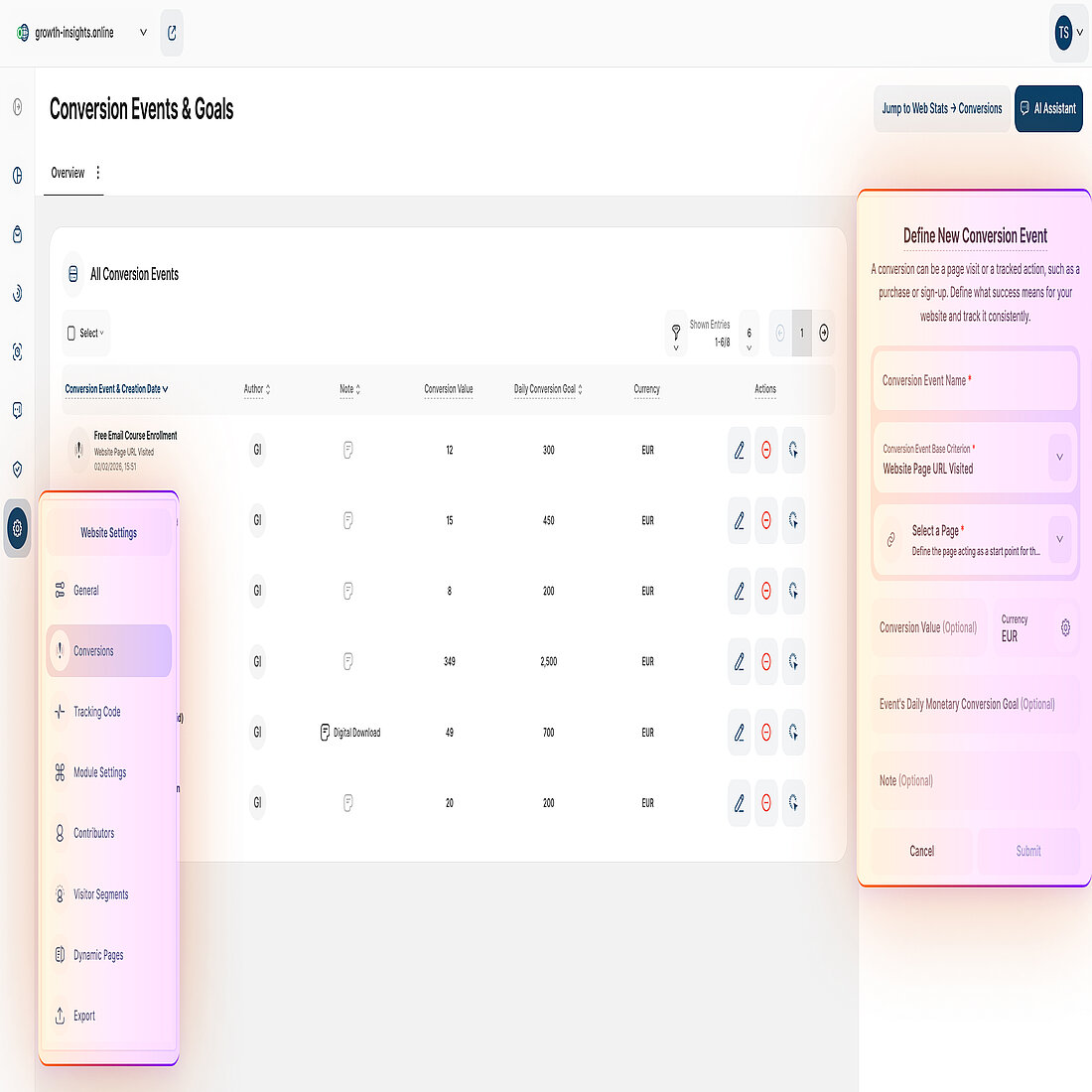
| What to do | Why this matters | Where to do this | Further guidance | |
| 1. | Define a Conversion event. | Transforms tracked interactions into conversion data that can be evaluated across the platform. | Web Statistics → Conversions → Manage Conversion Events |
Note: After creating a Conversion Event, trigger the interaction on your website and confirm it appears in the Conversions overview (count and, if set, value).
Event Tracking
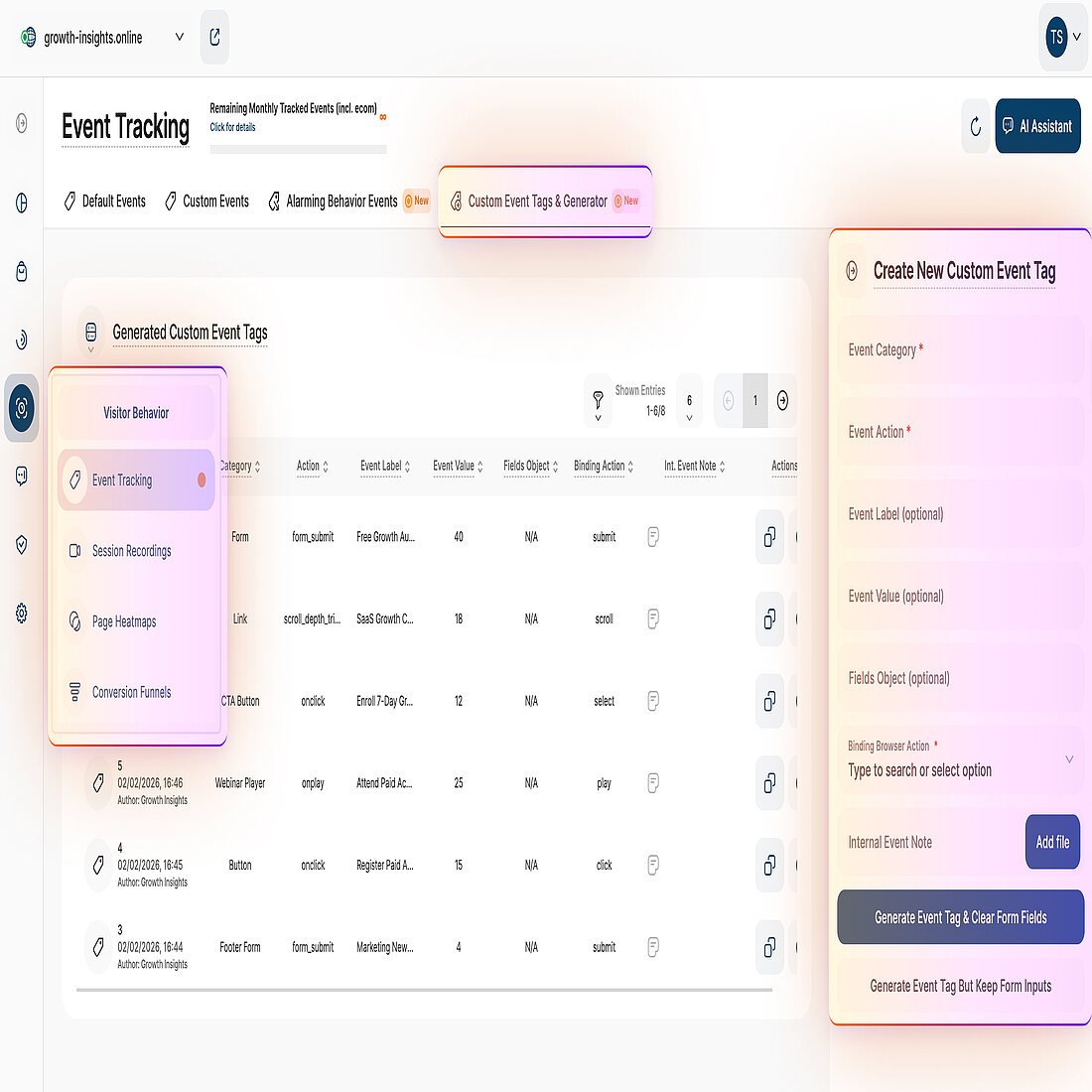
| What to do | Why this matters | Where to do this | Further guidance | |
| 1. | Create custom events. | Defines Custom Event Tags for tracking additional interactions that are not covered by Default Events. | Visitor Behavior → Event Tracking → Custom Event Tags & Generator. Then, website source code | |
| 2. | Calibrate default event settings. | Controls which common interactions are tracked automatically, ensuring baseline event data is collected consistently and aligned with how visitors actually interact with your website. | Website Settings → Module Settings → Event Tracking |
Note
- Custom Event Tags are not supported for Wix websites.
- After adding the Custom Event Tag, trigger the interaction on your website and confirm the event appears in the Custom Events list with a new hit.
Session Recordings
| What to do | Why this matters | Where to do this | Further guidance | |
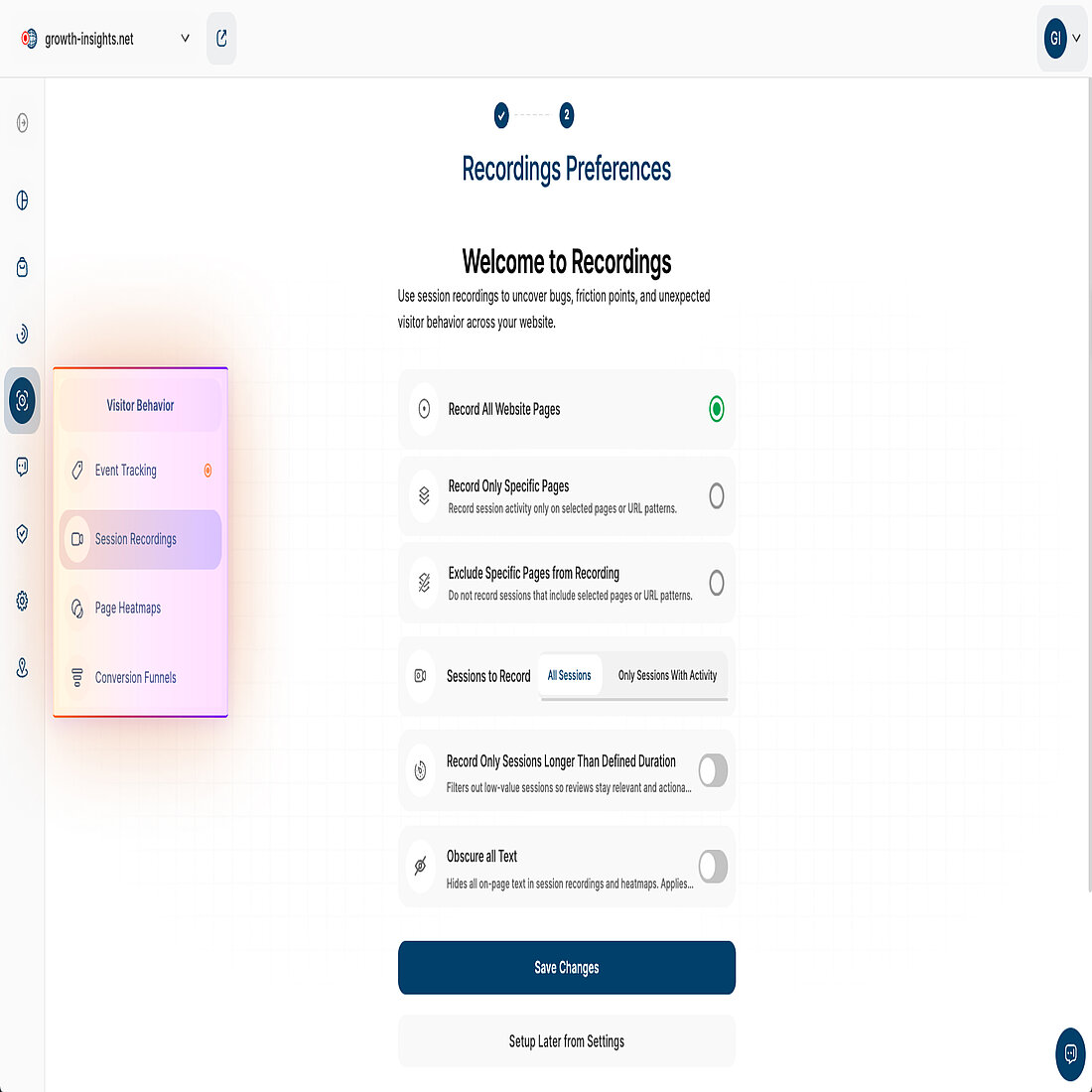
| 1. | Activate Session Recordings. | Allows you to replay individual visits to see how visitors navigate pages, interact with elements, and encounter friction that may not be visible in aggregated reports. | Visitor Behavior → Session Recordings | |
| 2. | Record and replay your own visit to confirm session recordings are working. | Verifies that session recordings are being captured correctly before relying on them for visitor analysis. | Live website (your domain), then Web Statistics → Visitors → Visitor Sessions Overview. Locate your visit using recent activity or filters such as IP address (if available), device, or browser, and open the associated session recording. |
Additional Information
Page Heatmaps
| What to do | Why this matters | Where to do this | Further guidance | |
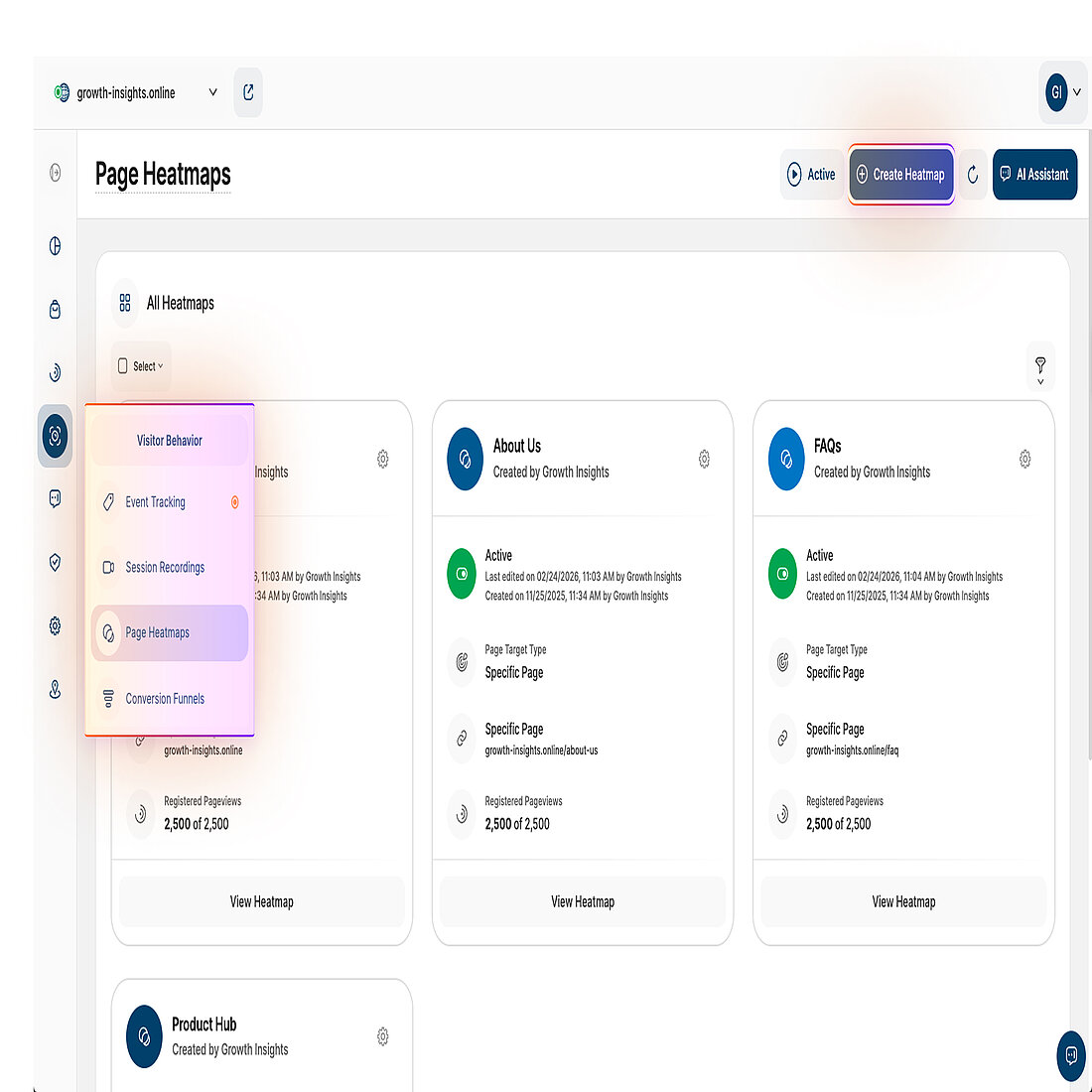
| 1. | Create a Heatmap. | Enables visual analysis of how visitors interact across defined page types, dynamic content, or URL patterns. | Visitor Behavior → Page Heatmaps |
Additional Information
Conversion Funnels
| What to do | Why this matters | Where to do this | Further guidance | |
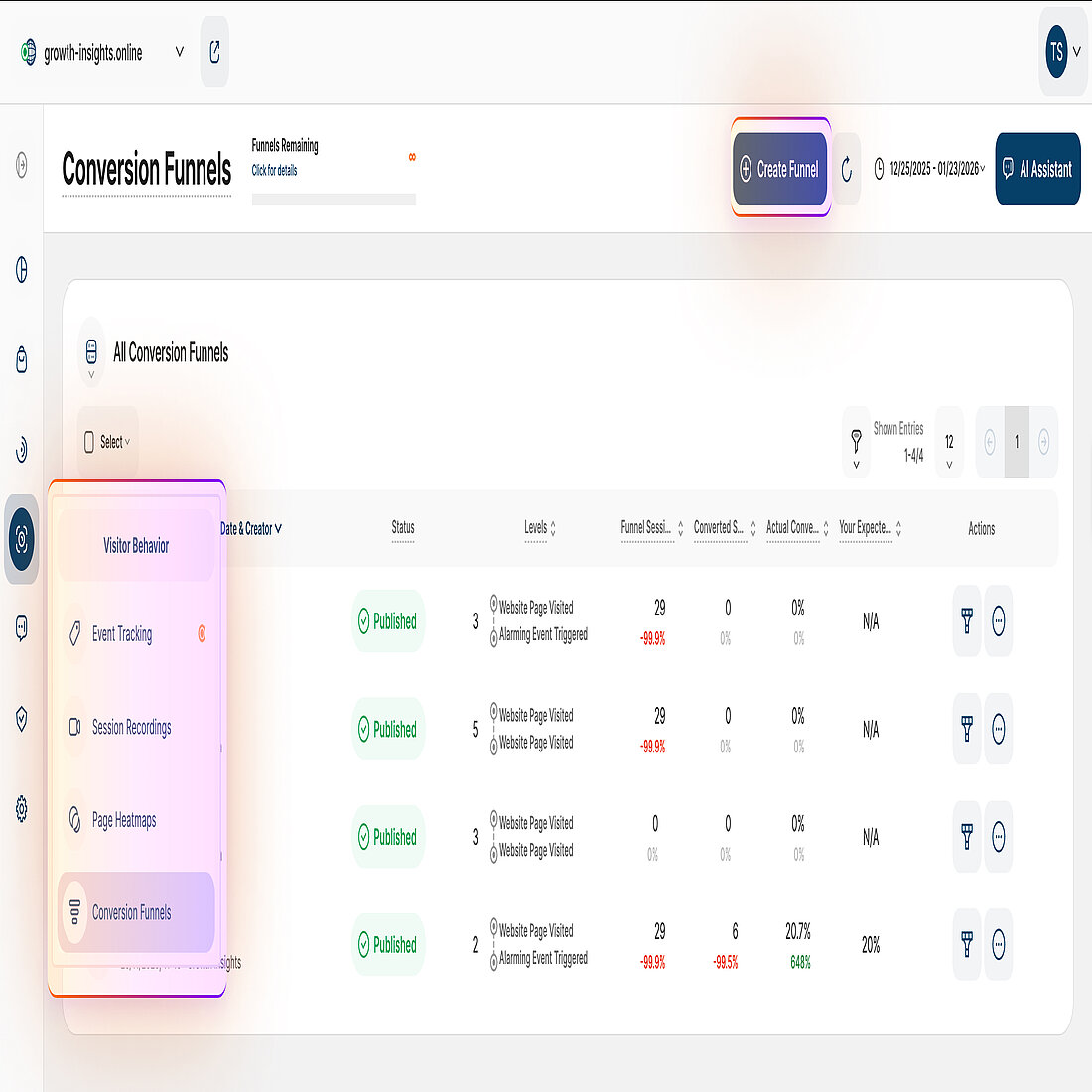
| 1. | Create a Conversion Funnel. | Defines a visitor journey so progression and drop-offs can be analyzed. | Visitor Behavior → Conversion Funnels → Create Funnel |
Explore Additional Setup Resources
Extended configuration options support more advanced analysis and use cases once the core setup is complete.
eCommerce
| What to do | Why this matters | Where to do this | Further guidance | |
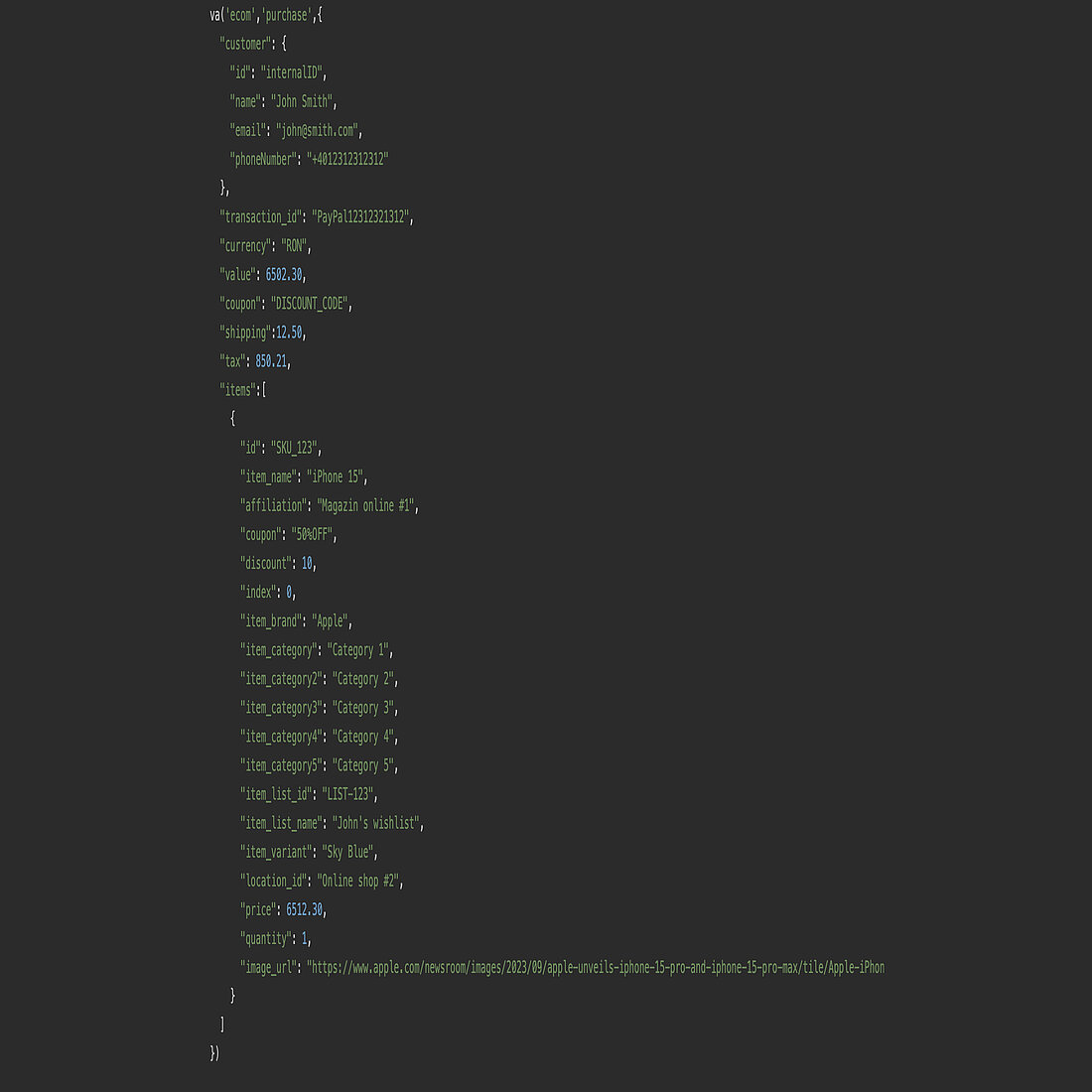
| 1. | Set up eCommerce and purchase tracking. | Enables revenue, order, and product-level analysis so conversions can be evaluated beyond page interactions. | Webstore codebase (manual JavaScript implementation) | |
| 2. | Set the default currency label for eCommerce data. | Ensures revenue, order values, and purchase metrics are displayed using the correct currency label in eCommerce reports. | Website Settings → Module Settings → eCommerce |
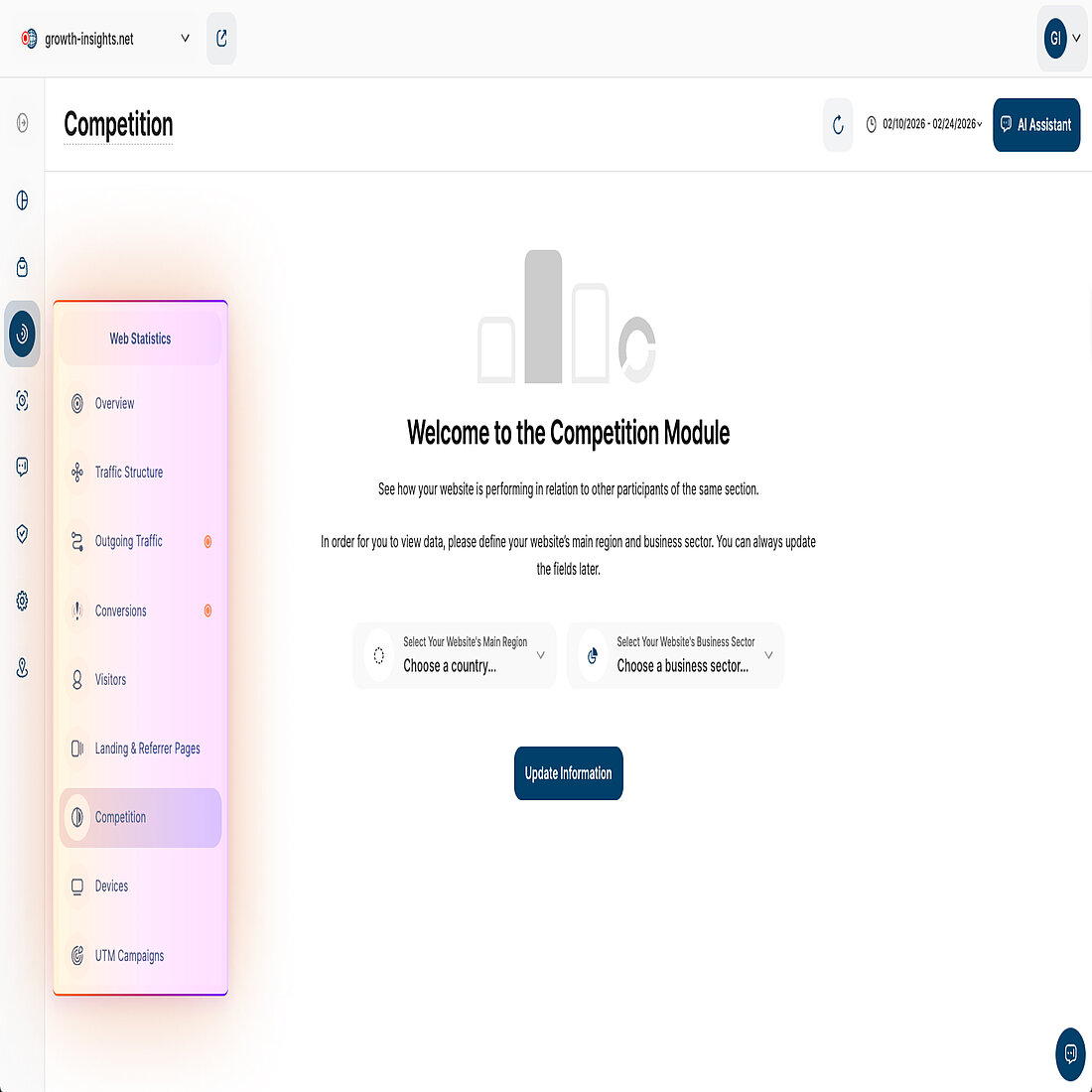
Competition
| What to do | Why this matters | Where to do this | Further guidance | |
| 1. | Activate the Competition module. | Ensures competitor benchmarking is based on relevant domains and comparable traffic context. | Web Statistics → Competition |
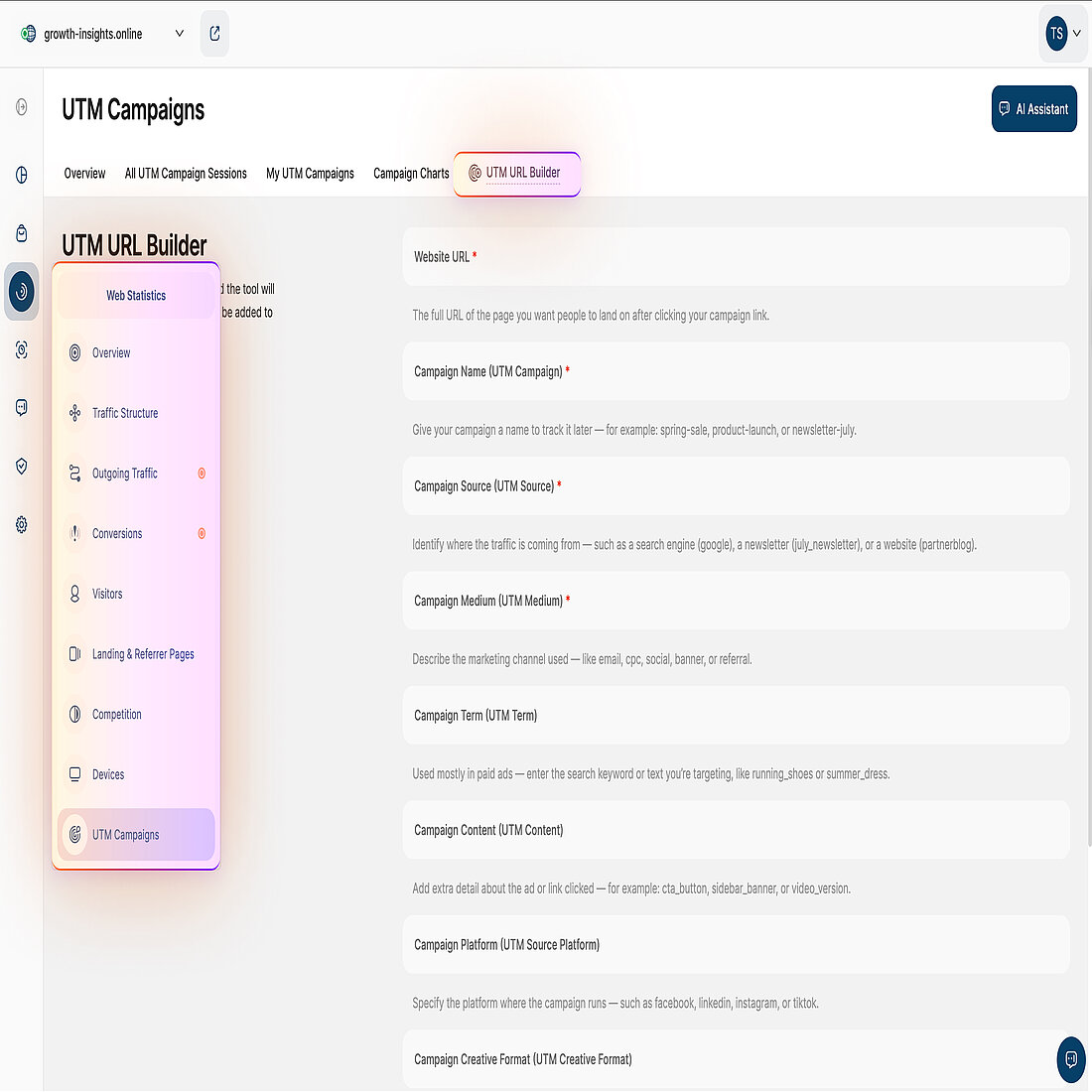
UTM Campaigns
| What to do | Why this matters | Where to do this | Further guidance | |
| 1. | Create a UTM campaign. | Allows campaign visits to be attributed correctly across reports by tagging shared links. | Web Statistics → UTM Campaigns → UTM URL Builder | |
| 2. | Improve traffic attribution with URL parameters. | Ensures visits are classified into the correct traffic channels when referrer data is missing or unreliable. | Campaign links and landing page URLs (outside the platform) |
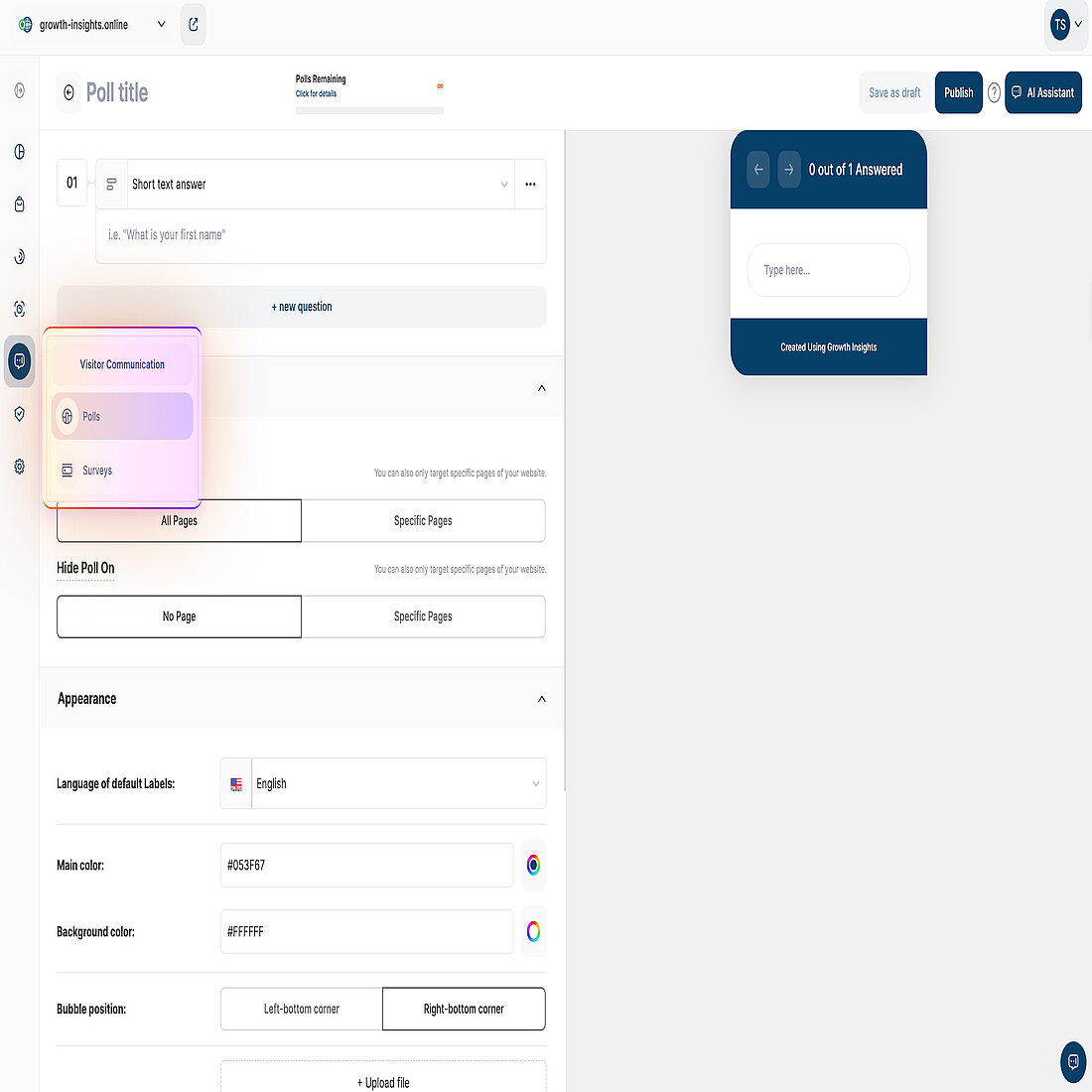
Visitor Communication
| What to do | Why this matters | Where to do this | Further guidance | |
| 1. | Create a website poll. | Captures feedback directly from active webpage visitors at the moment of interaction, tying responses to on-page behavior and context. | Visitor Communication → Polls | |
| 2. | Create a survey. | Collects feedback via a dedicated survey URL that can be shared beyond the website, enabling input from broader or targeted audiences. | Visitor Communication → Surveys |
Once these tasks are complete, your installation is active and ready for analysis.
You can now start exploring visitor behavior, conversion paths, and performance trends, and expand your setup using the optional guides below when relevant.
If you need help at any point, support is available through TWAIA or via the in-app chat.
