Session Recordings
You'll never watch a random recording again.
Session Recordings replays real visits to your website, with every click, scroll and moment of frustration marked on the timeline. But the part that matters comes before you press play: every recording is filtered by the rest of the platform, so the list you open is the visitors who dropped out of your funnel, or rage clicked on checkout, or arrived from the paid campaign and converted. Not two hundred strangers.
ANALYZESession Recordings is one of five Analyze tools. → Explore them all
CURATED RECORDINGS
Start with the question. Then watch the answer.
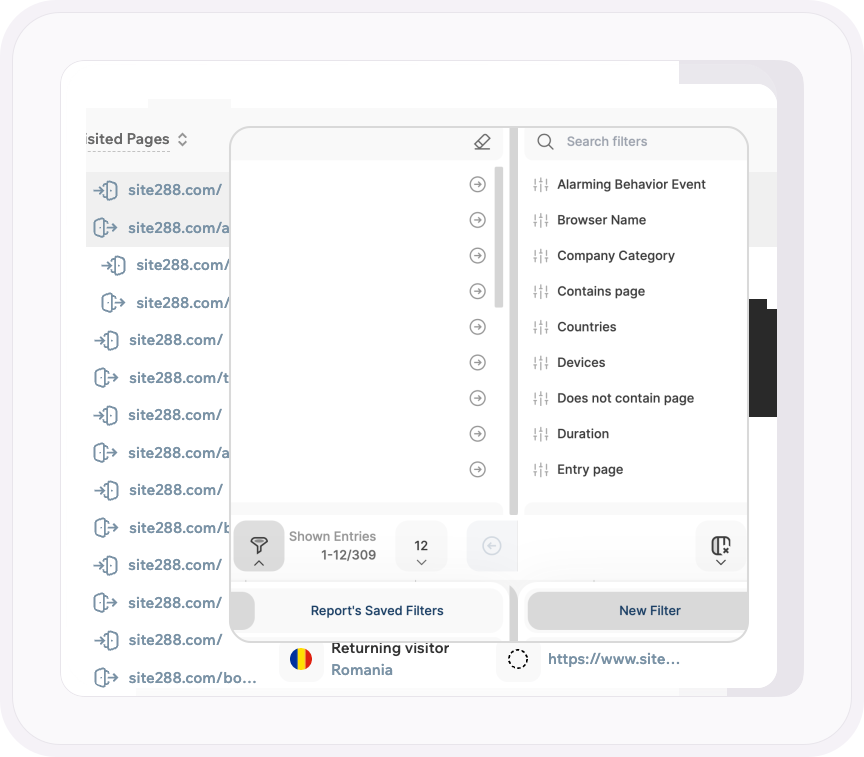
Other tools give you a pile of replays and a search box. Here, the filters come from across the platform: a specific alarming behavior, traffic channel, UTM campaign, company category, visitor type, entry and exit page, duration and page count.
Stack them, save the combination, and the list on your screen is exactly the sessions you needed to see.
Often you won't need to build it at all. Click Watch Dropouts on a funnel step, or the recordings button on a rage click report, and the list arrives already filtered.
- Pick AI traffic as the channel and watch exactly what visitors from ChatGPT or Perplexity did on your site
- The camera icon beside any visitor in Live Visitor Activity, Visitors or your UTM campaign reports opens their recording
- On Wix paid plans, isolate add to cart, checkout or purchase and watch the shoppers who stopped halfway
- Pull up your favorites, noted or unwatched recordings and pick up where your team left off
THE PLAYER
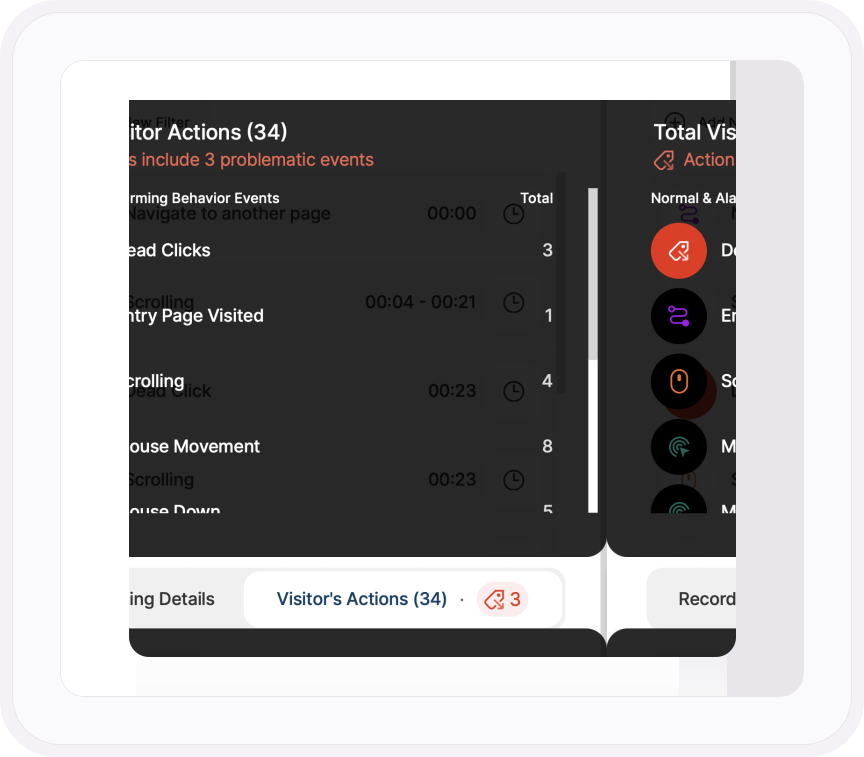
Every action listed. Every problem marked in red.
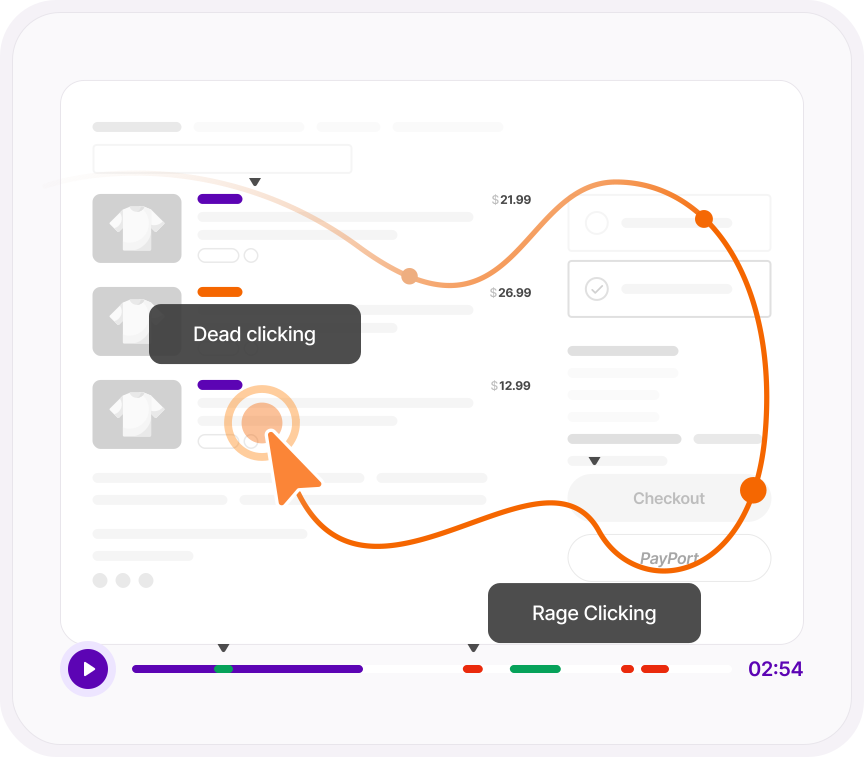
The timeline marks where each page starts and flags every frustration signal in red, so you spot the rage click before you've watched a second.
Beside the video, every action the visitor took is listed with its timestamp and a button that jumps straight to it. Skip Inactivity cuts the dead air and playback runs at up to 8x, so a ninety-second visit takes twenty seconds to understand.
- Each red flag follows a strict rule: a rage click is five clicks in six seconds with nothing changing on screen
- Hover over the timeline to see the time, the event and the page before you jump
- Narrow the action list to one type, say every dead click, and skip everything else
- Previous and Next move you through your filtered list without going back to the table
WHO IT WAS, AND WHAT YOU DO NEXT
Know who you're watching. Keep what you find.
Every recording comes with its visitor: new, returning or converting, plus their country, device, screen resolution, operating system, browser, referrer, and the pages they entered and left on.
Found something? Star it, add a note, mark it watched and copy a link for whoever needs to see it. Do it one recording at a time or for a whole page at once.
You also decide what gets recorded: every page or only some, every session or only the active ones, and a minimum length so three-second bounces never clutter the list.
- Sort the whole list by alarming behavior count and the most frustrated sessions rise straight to the top
- In Maximum Privacy mode, recordings run for every visitor with no consent banner needed, and page URLs are never exposed
- Switch on Obscure All Text and every word on the page is hidden in the replay
- Thousands of known bots are filtered out before they ever reach your list
ONE PLATFORM, FOUR STAGES
Most analytics show you what happened. TWIPLA tells you what to do about it.
Every tool runs on the same setup, and the filters you set follow you from report to report. So a number on this page becomes a recording, a funnel or an answer in one click. Analyze is where the numbers turn into behavior. Here's the whole route.
- OBSERVE: See what's happening →
- ANALYZE: See how visitors behave YOU ARE HERE
- UNDERSTAND: See what it costs you →
- ACT: See what to do next →